

Welcome to OctoTable
Connect, share, and engage with community and build relationships.
Please log in if you are already a member or sign up for an account.
This article explains how to activate and manage the pre-order system on OctoTable, allowing your customers to choose and order dishes in advance at the time of booking.
⚠️ If you want to include the Pre-order feature in your subscription, you will need to purchase a DigiMenu, Premium or EVO plan in Subscription > Upgrade ⚠️
From the left menu, click on Configuration > Service hours, then create a new service or edit an existing one.
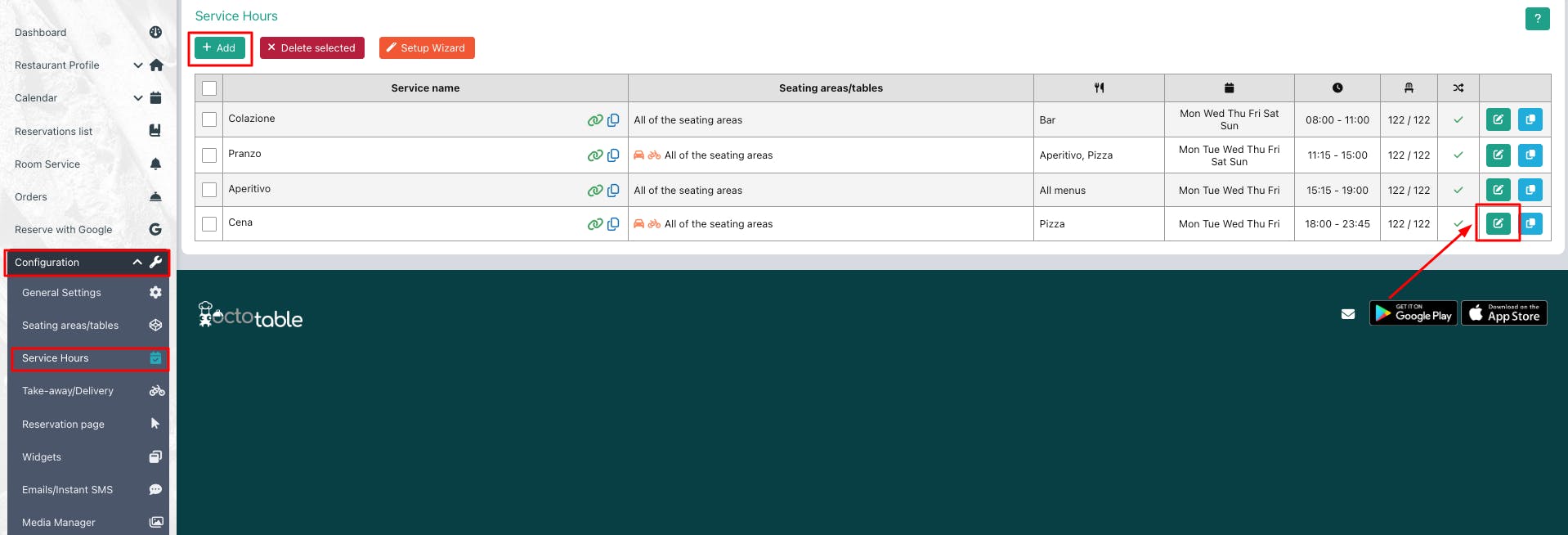
Once on the service configuration page, in the Orders section, you can decide whether to:
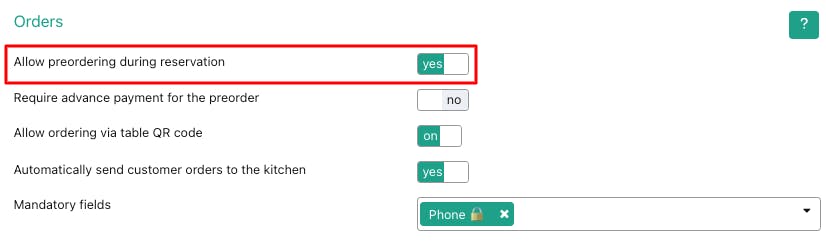
Allow preordering during reservation: by activating this option, customers will be able to order dishes directly during online booking.
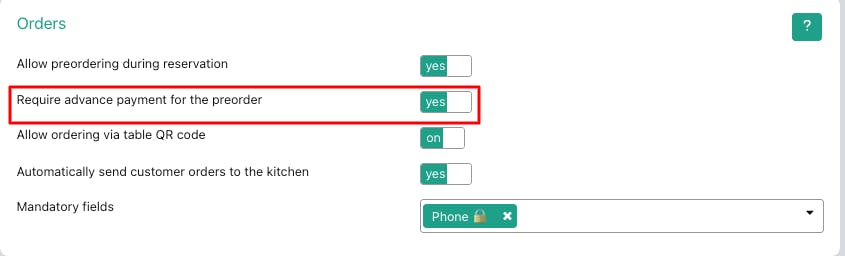
Require advance payment for the preorder: if you activate this option, the customer will need to pay immediately by credit card (requires Stripe integration).
Choose the settings that best suit your service and sales strategy. If you want to ensure a predictable cash flow and reduce no-shows, advance payment is the ideal solution.
At the time of booking, the customer can decide whether to select one of your available menus and proceed with the pre-order, or select Order later to order directly at the table.
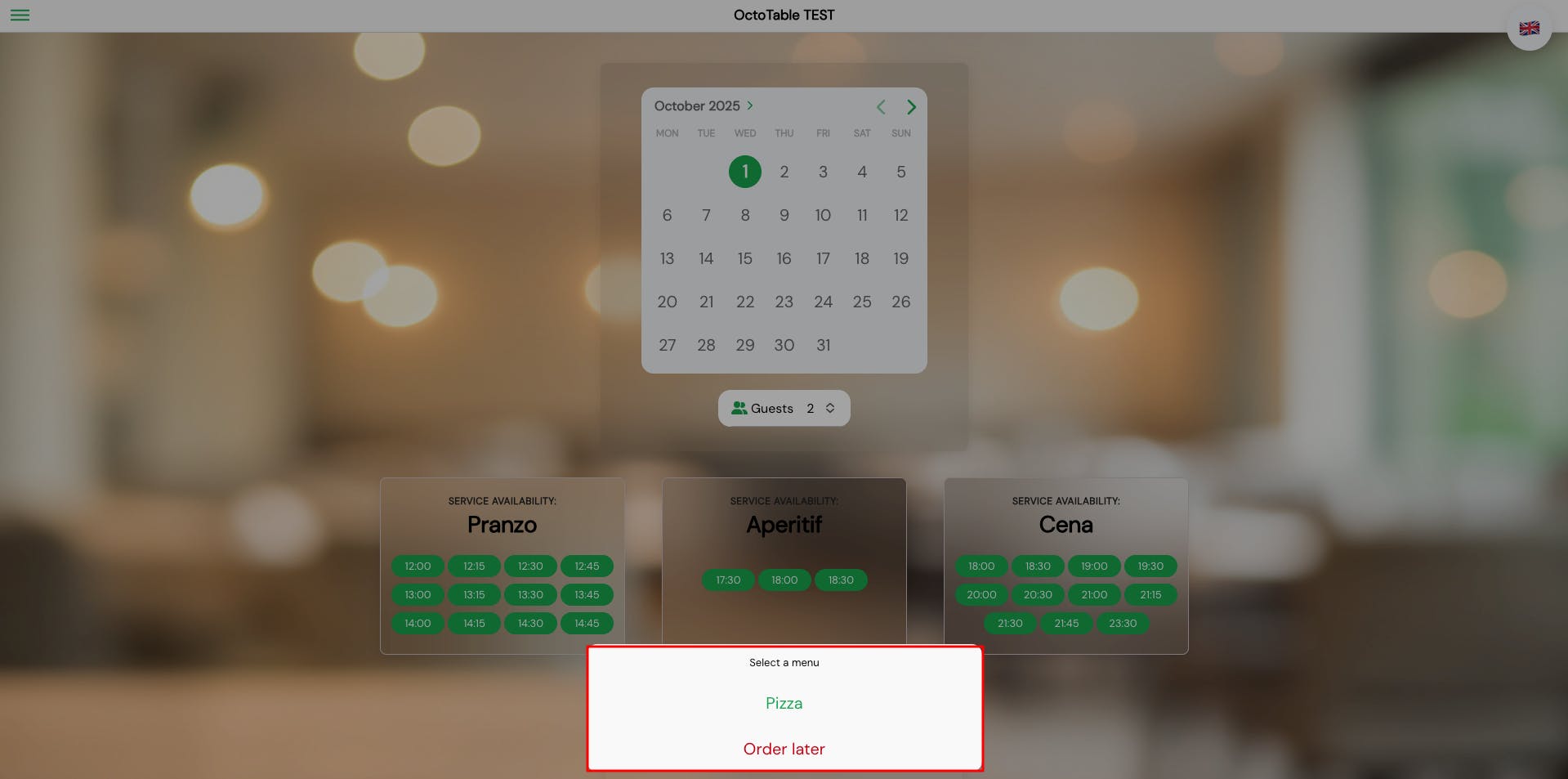
📌 Please note: pre-orders can only be made for same-day bookings, not for subsequent days.
If they choose to pre-order, the customer is directed to the digital menu. Here they can:
Browse the dishes available for that service
Click on Add to order for each desired dish
View the cart with the complete order summary
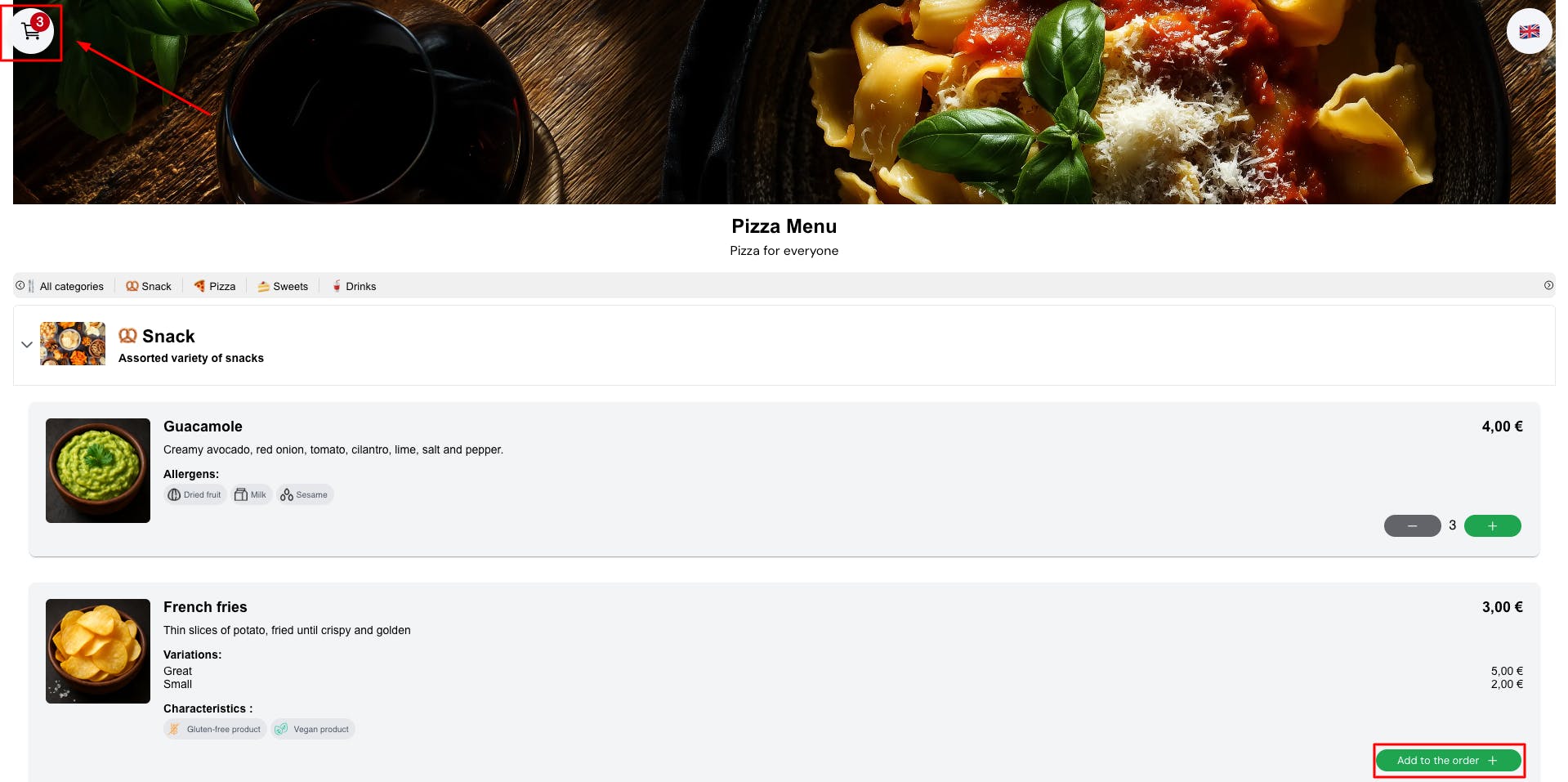
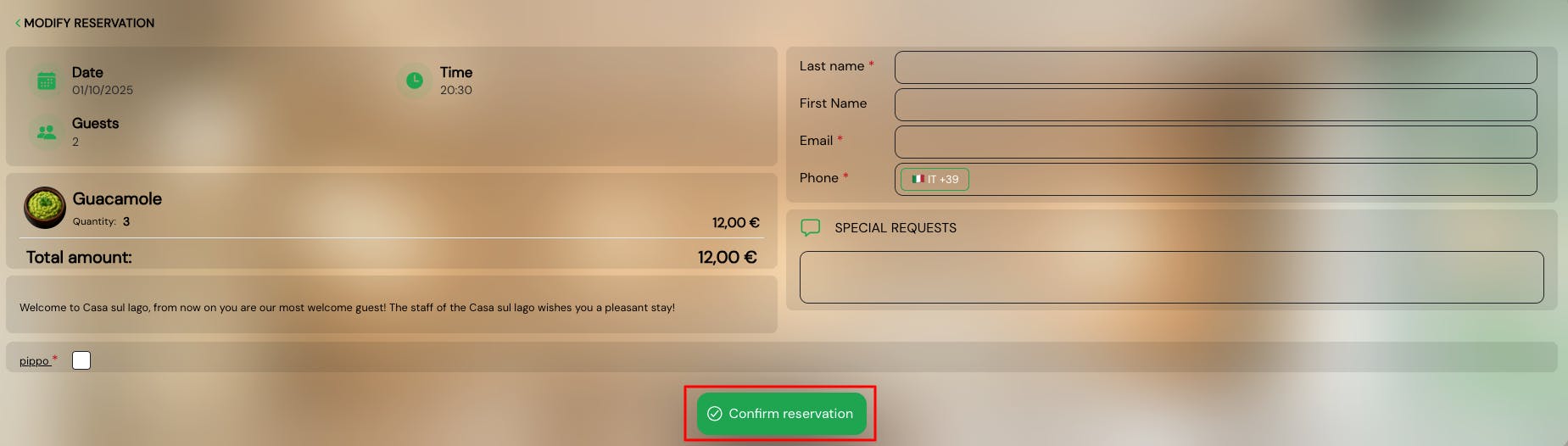
Only after confirming they want to proceed with the order will the customer complete the booking by filling in the required fields (name, email, phone, number of guests, any special requests).
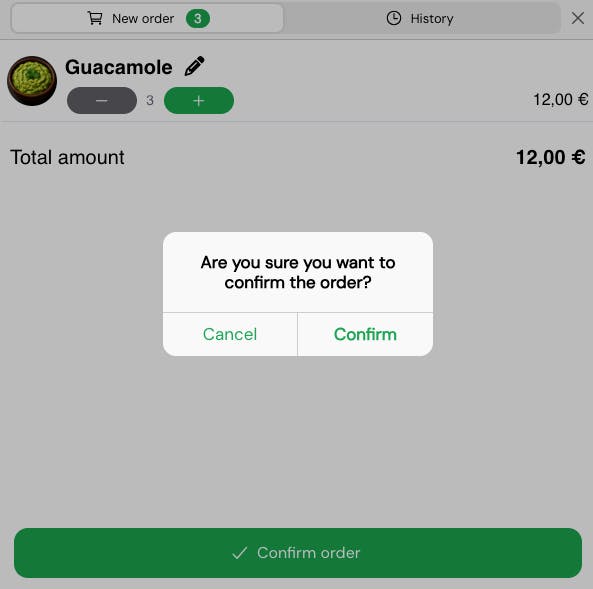
In this way, the customer manages booking and ordering in a single, smooth and fast experience.
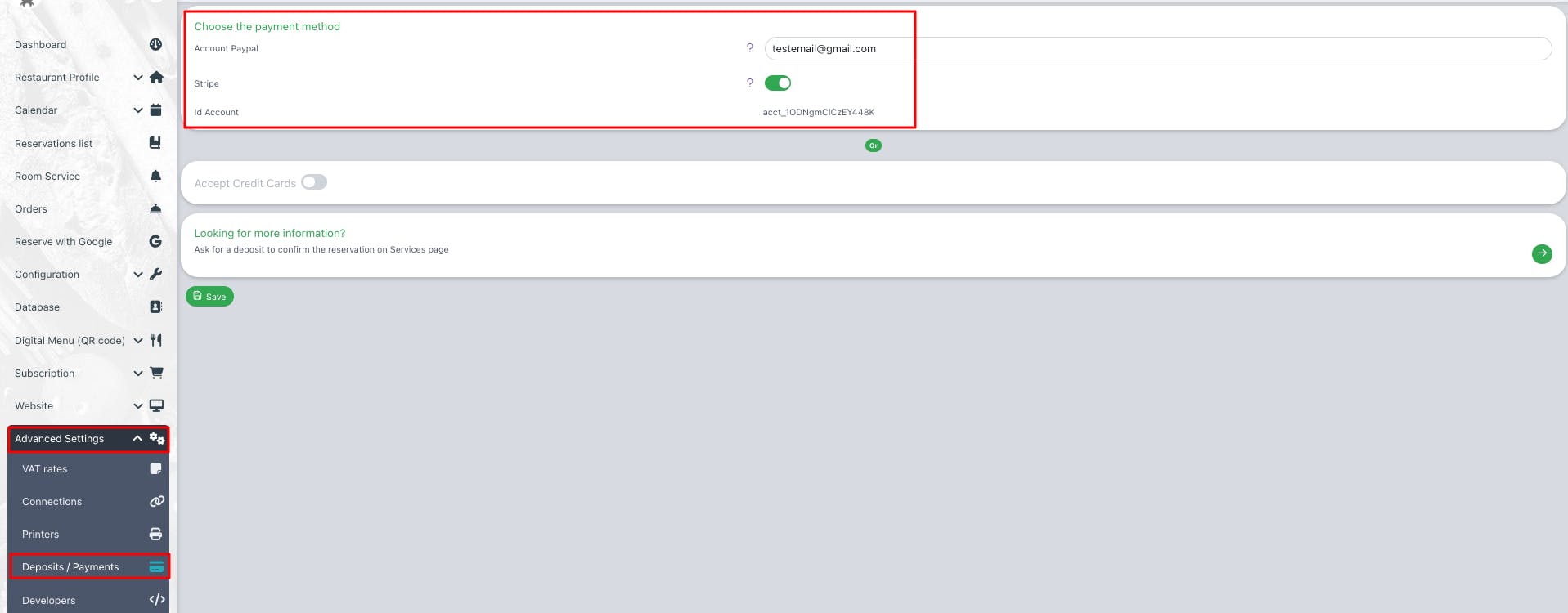
⚠️ Warning: to make online payment available, you need to configure a Stripe account. Go to Advanced Settings > Deposits/Payments and enter your Stripe account details.
In Configuration > Services hours activate the option Require advance payment for pre-order.
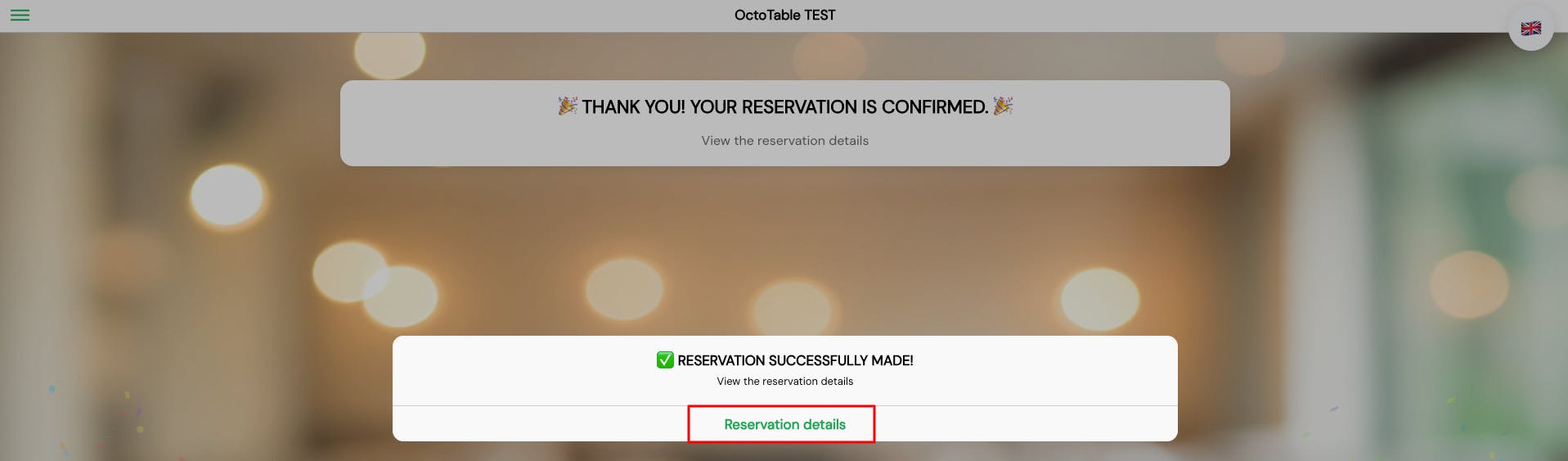
After choosing the dishes and completing the booking, the customer can access Reservation details.
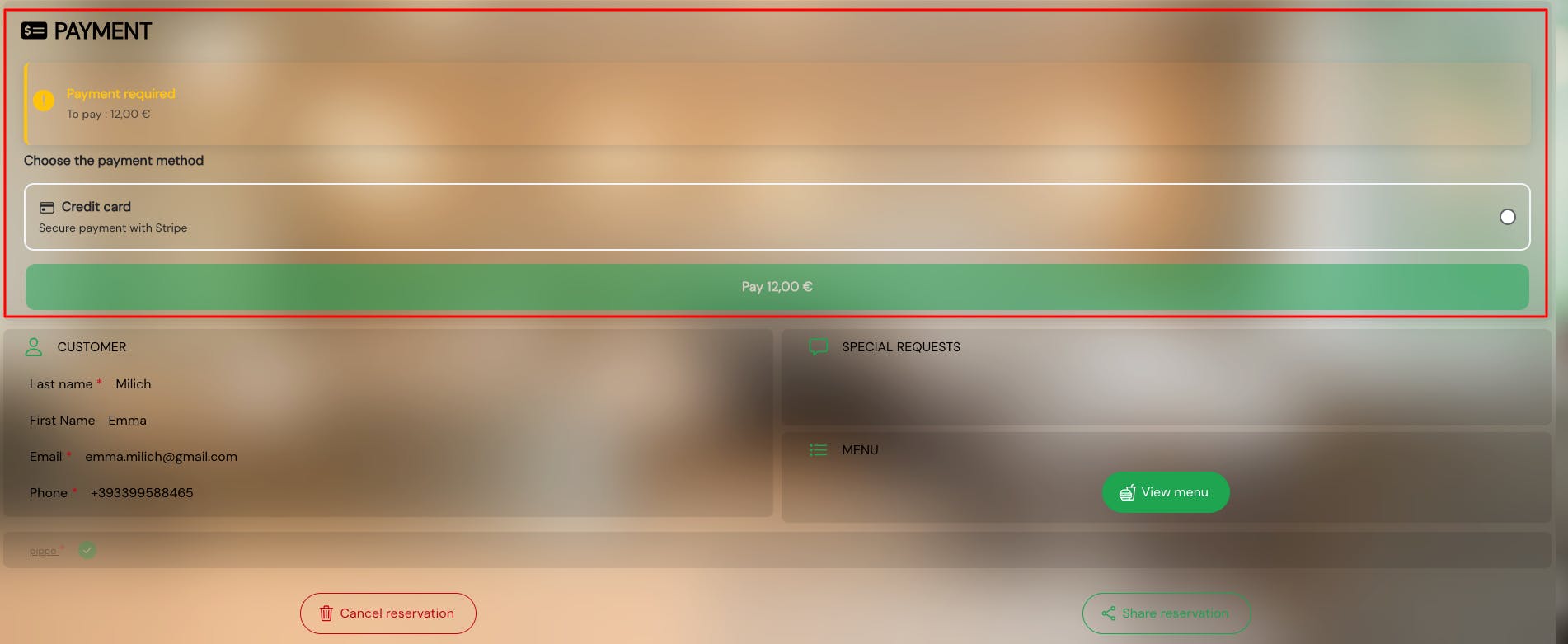
In the Payment section, the customer will have the option to enter credit card details and pay immediately. This way you will receive the money through your Stripe account.
If the customer prefers not to pay immediately and wait to pay at the venue, the booking will be registered on your Dashboard with the status Amount due.

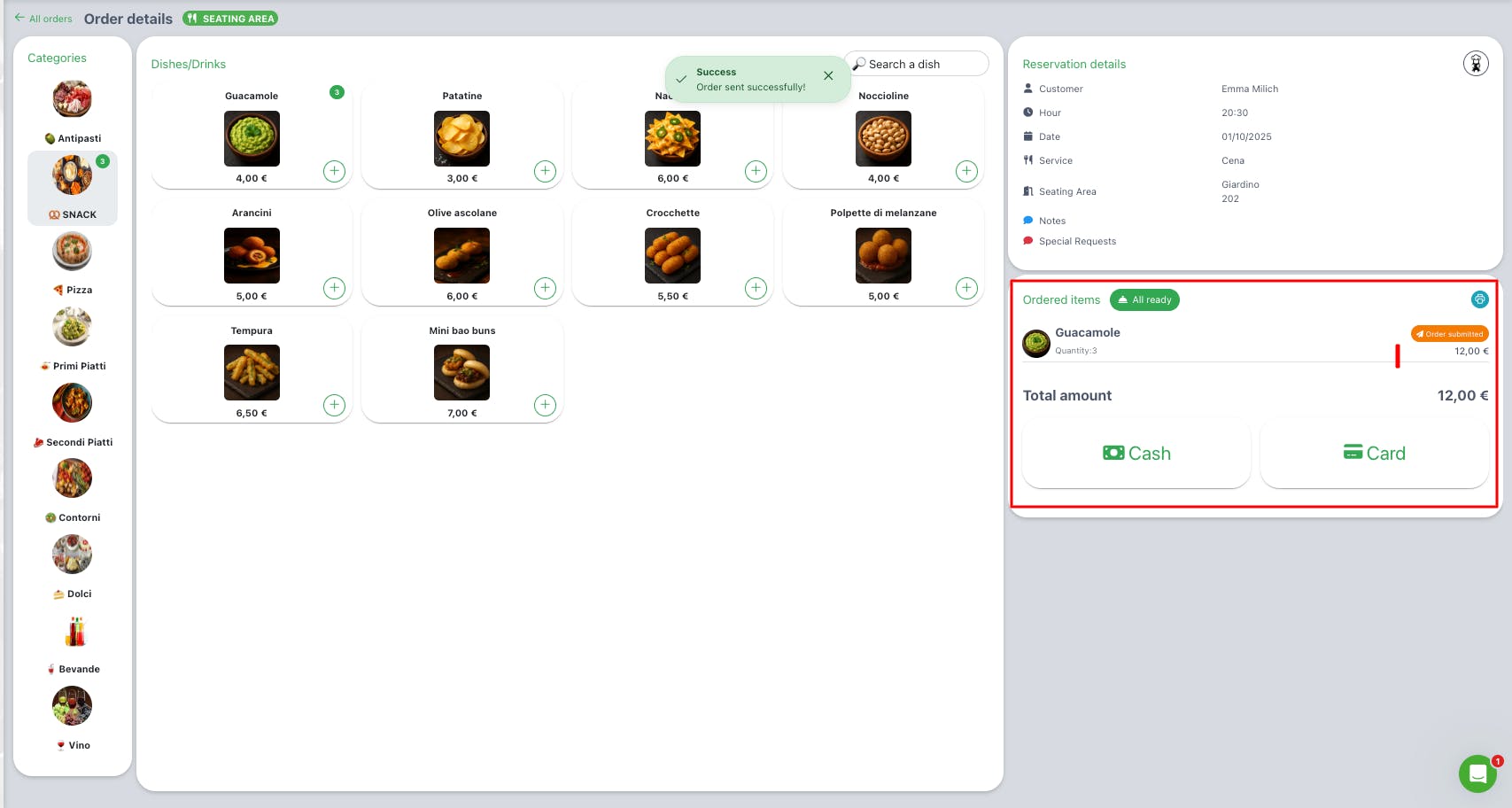
In this case, you will manage the payment along with the order by accessing Order details from the booking. From here you can manually register the payment once received at the venue and record information about the payment method used.
Want to discover how to manage orders on OctoTable? Read this other article