Welcome to Qui Reserve / Qui Prenota
Connect, share, and engage with community and build relationships.
Please log in if you are already a member or sign up for an account.
The article explains how to manually add a new reservation from your Octotable account.
To manually add a new reservation you can use one of these 3 methods:
1) Click on the person's icon that appears in each section of Octotable at the top right corner:

You will see a new pop up where you can type the guest's details :
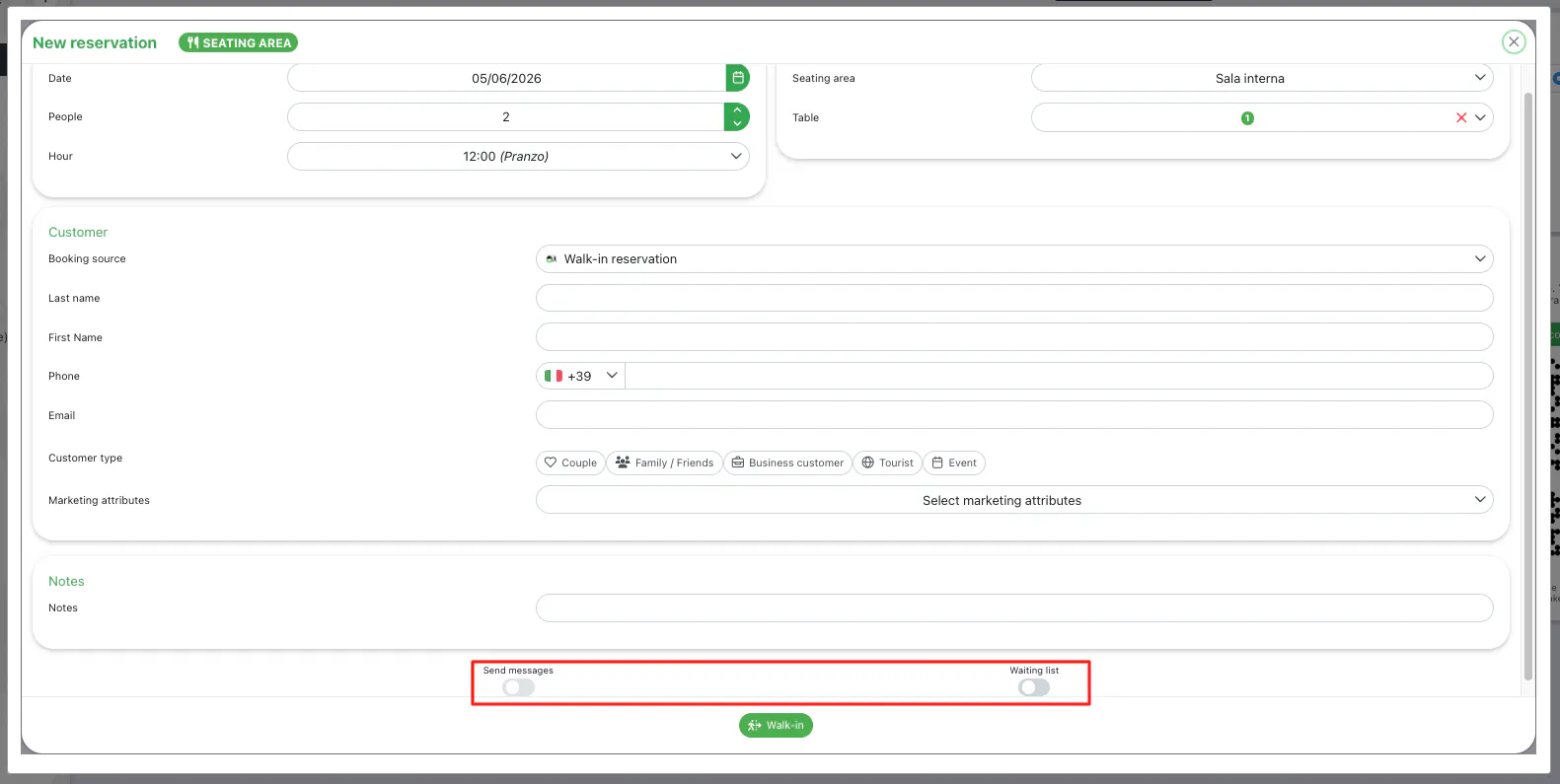
By setting the flag on send messages/SMS, you can decide to send an automatic message to the customer. Click here to read about automatic emails/sms.
By selecting the flag of the Waiting list, you can add this manual booking to the waiting list.
📌 N.B. With the EVO plan, when you manually add a reservation, the customer information you enter will be automatically saved in the customer Database (click here to find out), so that the next time you register that customer, the system will retrieve the data from the first reservation entered and will fill in the remaining fields automatically.
2) Click on the planning! 📆
Click on the left on Calendar > Planning or click on the icon at the top right.
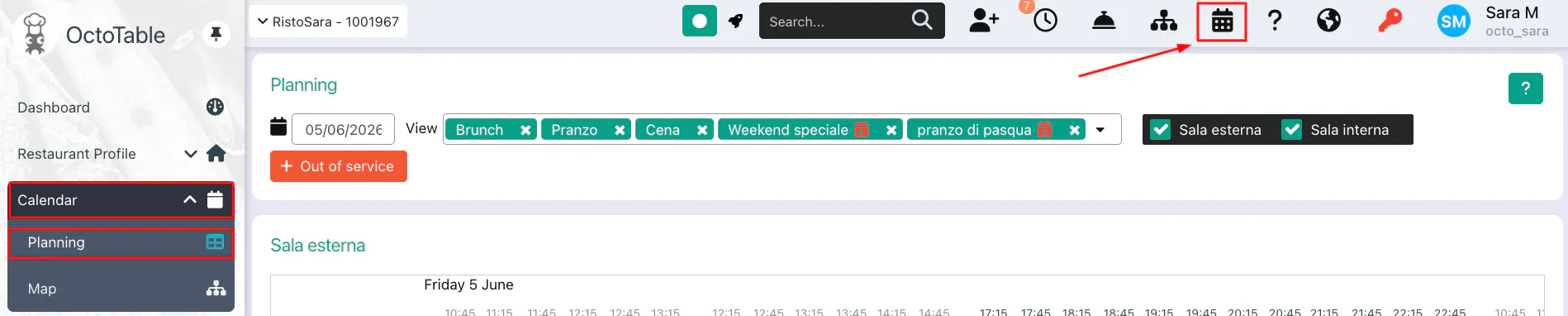
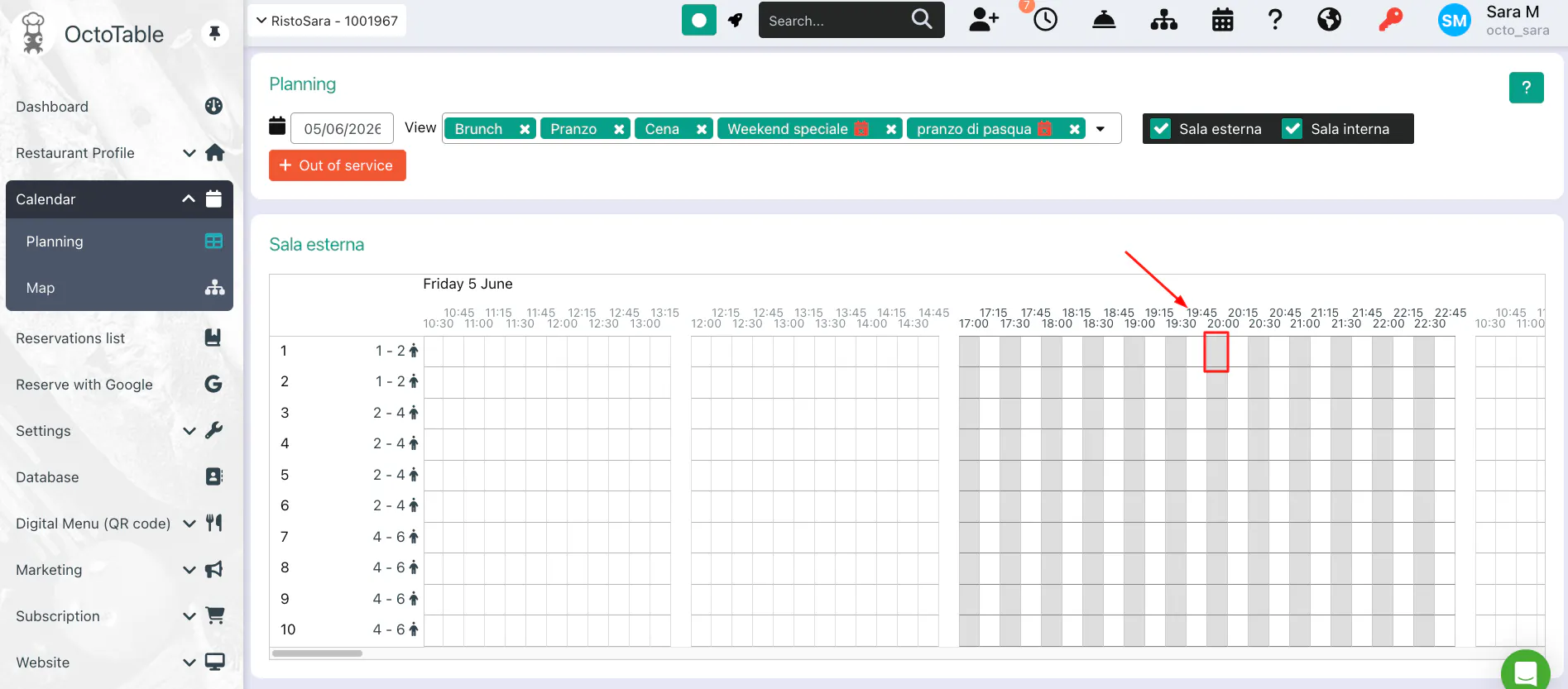
When you are on the planning, scroll to decide the day for which you want to enter the reservation, the time and the table.
For example, if you want to enter a reservation for 5th June on Table 1 at 8 pm, you need to click on the box where the table and the time intersect, and a new reservation window will automatically open (as seen above in the first method ); in this case the time and table will be automatically filled in:
3) Enter a reservation from the Floor Plan
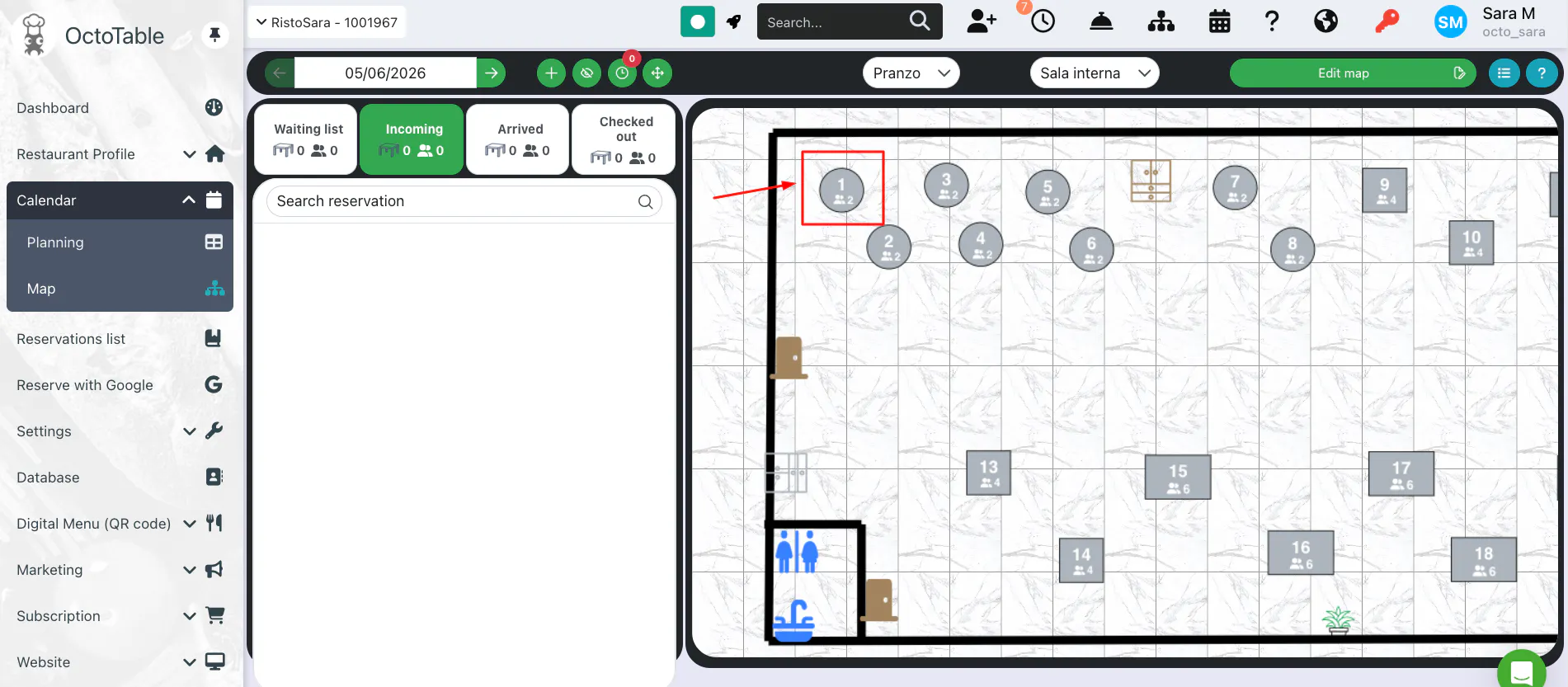
Access the map by clicking Calendar > Map in the left-hand menu, or by using the Map button in the top-right corner, and then enter the reservation details in the pop up window.
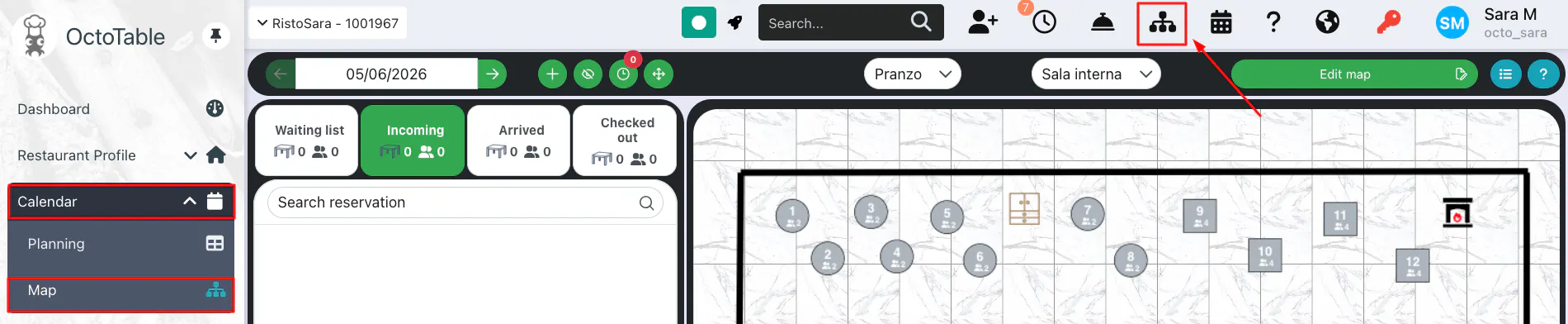
Select the table you want to enter the reservation by clicking on the table capacity