

Welcome to OctoTable
Connect, share, and engage with community and build relationships.
Please log in if you are already a member or sign up for an account.
This article explains where to view and manage all your restaurant's reservations on Octotable: from the main Dashboard, the Planning view, the dedicated menu section, and directly from the map.
On Octotable, you can view the list of reservations in different sections of the platform and with different methods, depending on your management needs. Let's discover all the available options together.

Every time you access your Octotable account, the Dashboard automatically shows you all of today's reservations. This is the main view for managing reservations quickly and effectively.
Each reservation is organized in an intuitive and complete way. On the list you can find:

Customer's first and last name
Reservation channel: quickly understand if the reservation was manually entered as walk-in, received from the booking page, or from Google
Notes or special requests
Reservation time
Number of guests
Assigned tables
Room and service
Customer contact details: email and phone number
Finally, you'll find the action buttons and reservation status:
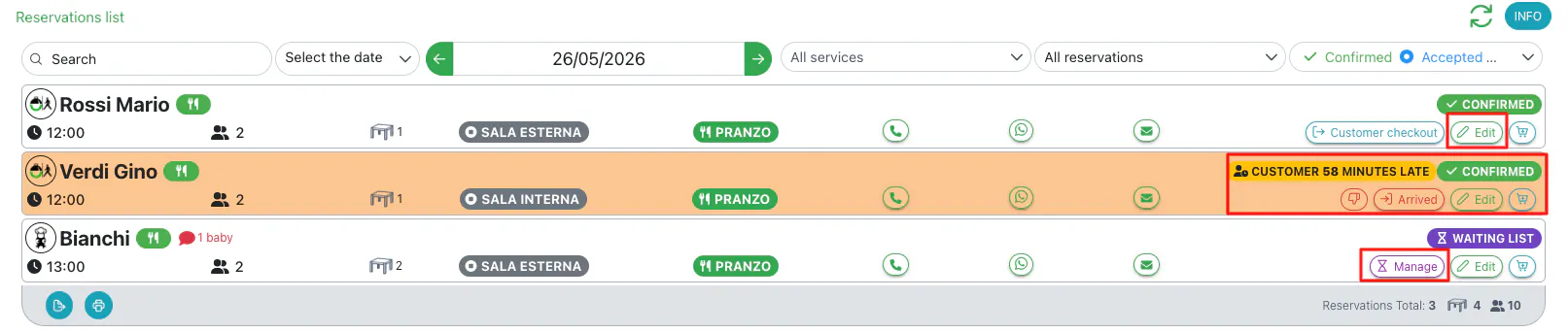
Green button to modify the reservation
Red or blue button to check-in or check-out the customer
Purple button to manage reservations on the Waiting List
📌 Please note: If the customer is late, the reservation will change to orange and a warning icon will appear. At that point, you can mark the customer as no show and the system will automatically proceed to cancel the reservation.
If you want to filter the display of your bookings, use the bar at the top:
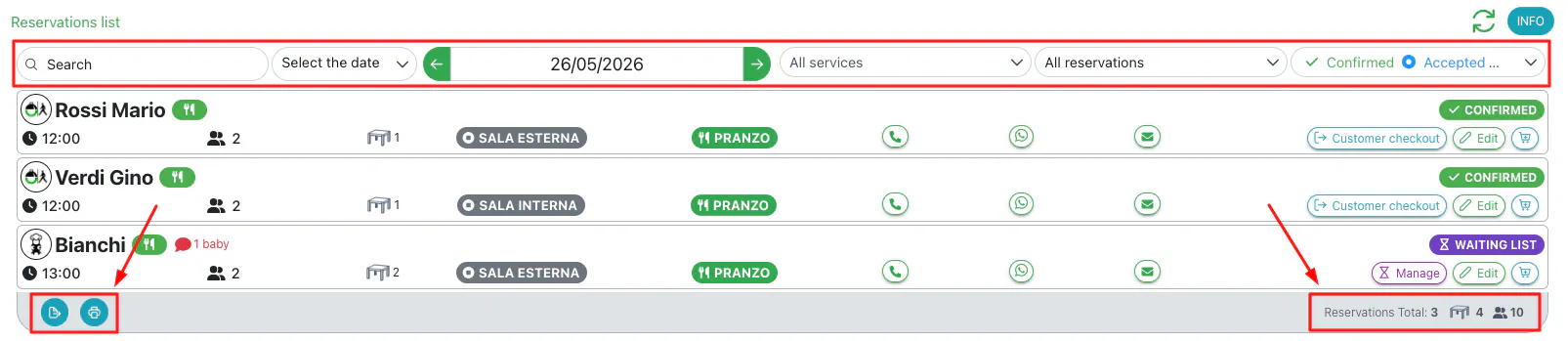
In the lower right part of the screen, you'll find the total number of reservations, tables, and guests based on the selected filters.
In the lower left part, you can:
Export reservations to an Excel file
Print the reservation list directly
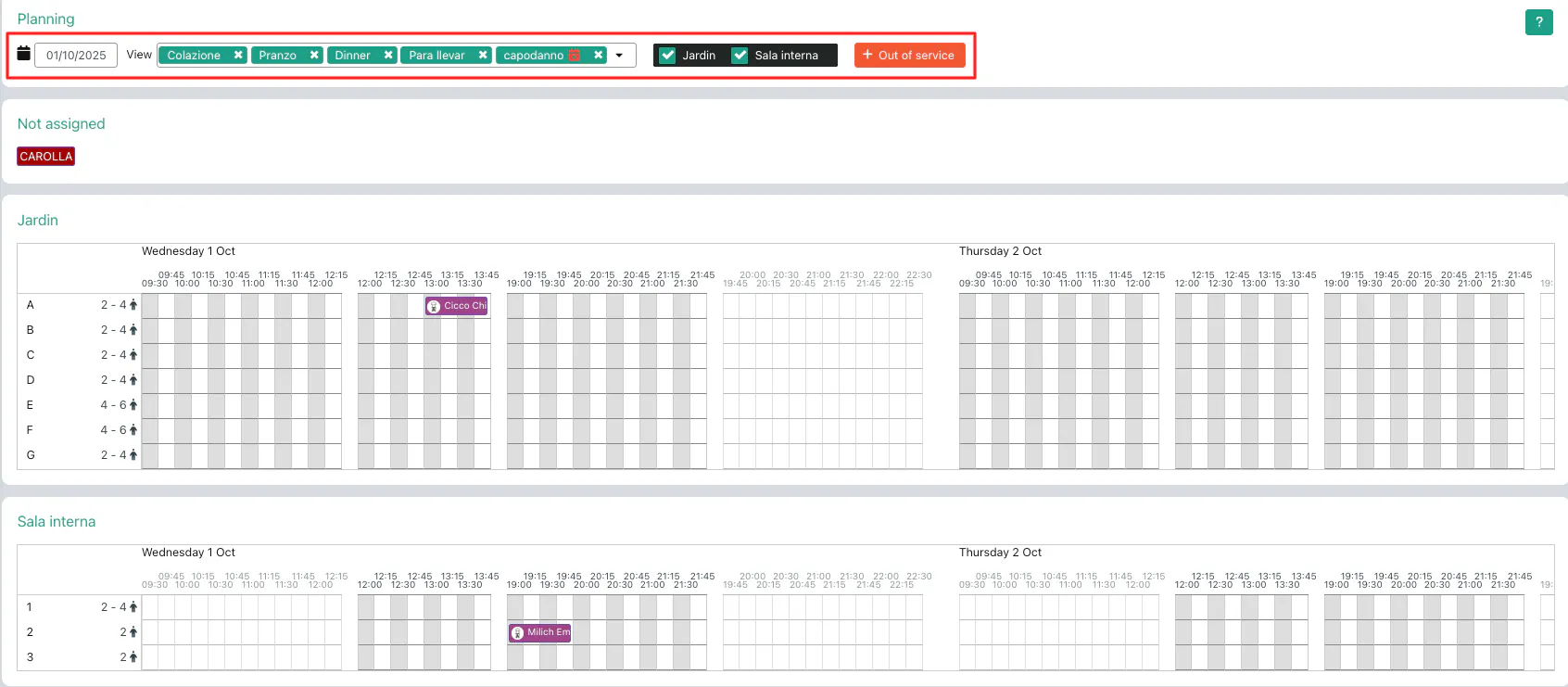
For a broader view of reservations over time, you can use the Planning. There are different ways to access it: go to Calendar > Planning, or click on the Planning icon at the top.

In Planning, you can also filter reservations by day, service, and room, viewing reservations directly on the calendar.
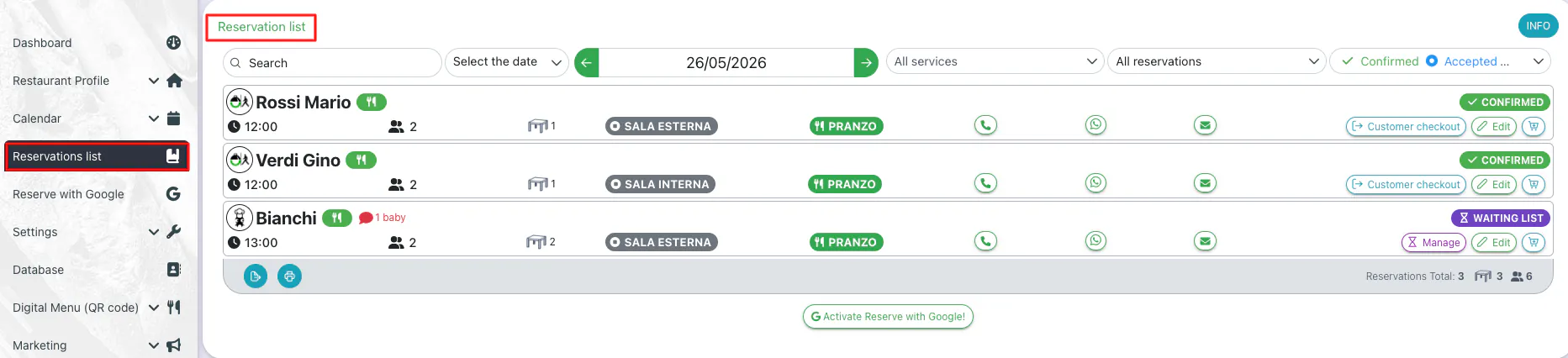
For immediate access to your reservation list, go to the Reservation List section from the left menu.
Here, you can view the screen with all the necessary details and manage your reservations.
Reservations can also be viewed directly from the Map of your restaurant's rooms. This method allows you to have an immediate view of the physical layout of tables and associated reservations. There are different ways to access it: go to Calendar > Map, or click on the Map icon at the top.
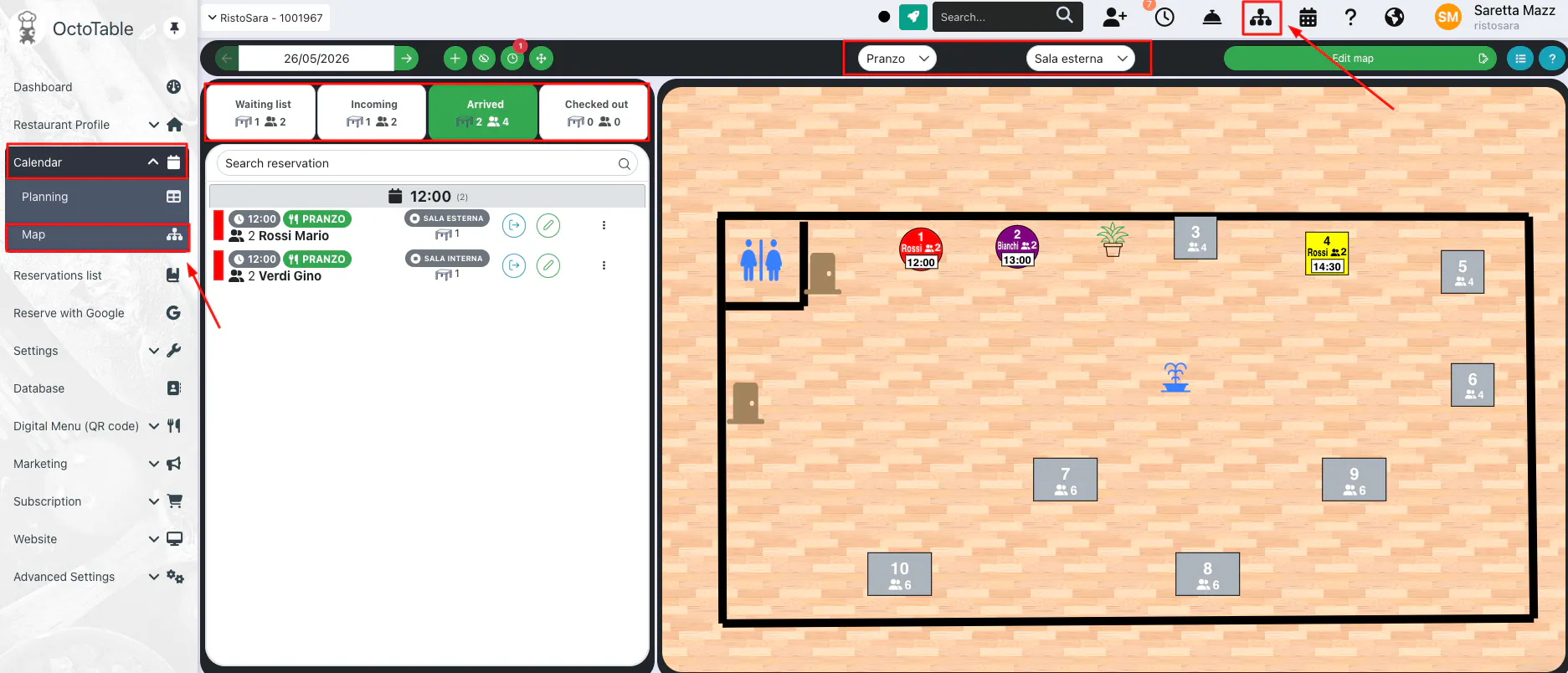
Remember to select the service and room of interest from the filters at the top. From the filters on the left, you can choose to view customers in the waiting list, those incoming, arrived, and departed from your restaurant.
From the Map you can:
See in real-time which tables are reserved and in which time slot
Quickly assign tables to reservations
View the status of each table: available, occupied, reserved, assigned to pending reservation
Manage grouped tables for large reservations
Perform check-in and check-out directly from the table view

Manage pending reservations
This view is particularly useful during service to better manage customer flow and optimize room occupancy.
Read the complete article to discover how to check the modification history of your reservations 👇