

Welcome to Qui Reserve / Qui Prenota
Connect, share, and engage with community and build relationships.
Please log in if you are already a member or sign up for an account.
The article explains how to create and customize the digital menu on OctoTable. It outlines the steps to choose the name, theme, colors, font, and header image, as well as the options to display the logo, category filters, and other personalized information. Additionally, it guides the user through generating the QR code and sharing the digital menu with customers.
⚠️ The Digital Menu is available in the FREE version. However, some features are only available with the DigiMenu, Premium, or EVO plans, which can be purchased via Subscription > Upgrade ⚠️
Discover the differences between the free and paid versions by clicking the following link:
After creating your categories and dishes, it’s time to compose your digital menus.
❗👇 Haven’t created your categories yet?
❗👇 Still need to add your dishes?
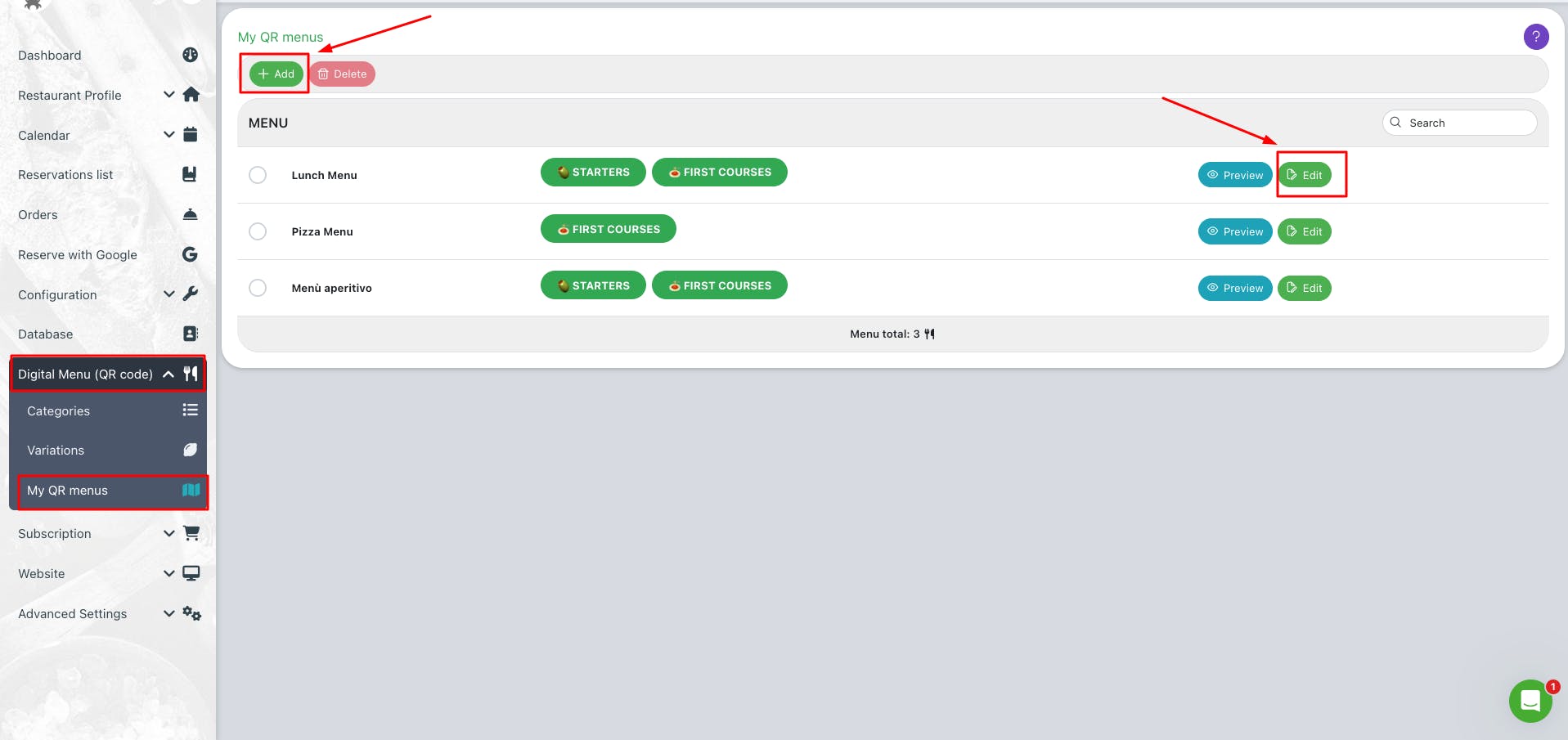
From the left menu, go to Digital Menu > My QR Menus.
To start, click on + Add to create a new digital menu.
Or edit an existing menu by clicking Edit.
Name Your Menu

Choose a name that reflects the menu content or the time of day (e.g., “Lunch Menu”, “Tasting Menu”).
Choose from generic backgrounds, thematic backgrounds, or upload a customised image as a header.

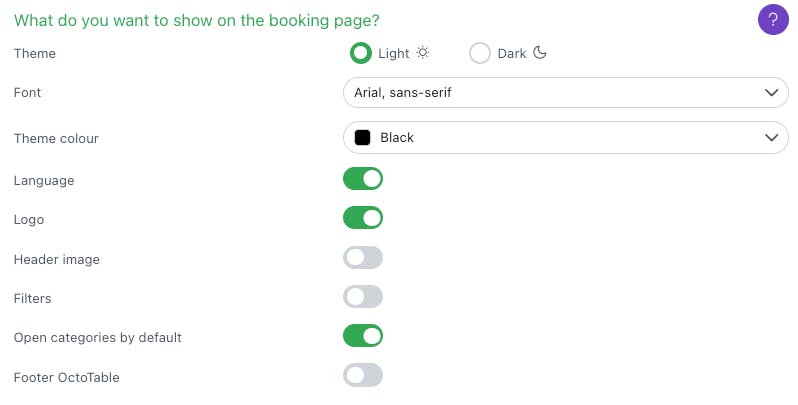
Choose between a light or dark theme.
Pick the font that best matches your restaurant’s style.
You can also customize the menu color – the available colors automatically adapt to the selected theme to ensure readability
You can choose to show or hide:
Language selection
Your restaurant’s logo
The chosen header image
Category filters and if you want to open categories by default
Footer with the OctoTable logo
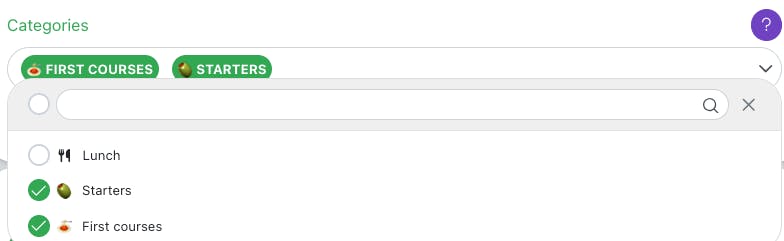
From the dropdown menu at the top right, select the categories you want to include in this menu.

Add a title and subtitle to describe the menu, the concept, or promote a special offer.
In the footer, you can include useful information such as:
Extra charges (e.g., service charge)
Your restaurant’s motto
Notes on allergens or ingredients
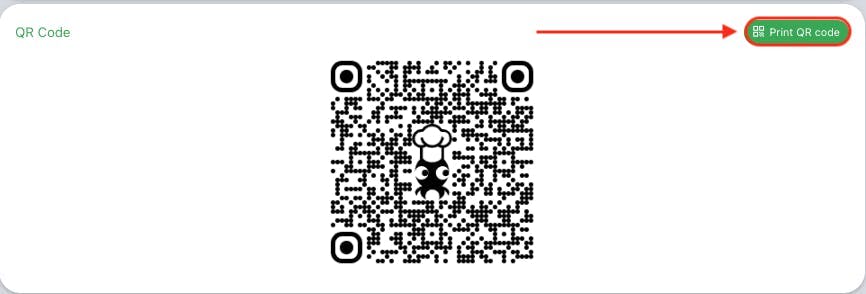
Click on Print QR Code to generate codes to print and place on tables.
You can choose the number of QR codes to print.
Preview your menu.

Once the preview is displayed, you can copy the direct link to your digital menu and share it on social media, Google My Business, or anywhere you like.

Your digital menu is ready!