Welcome to OctoTable
Connect, share, and engage with community and build relationships.
Please log in if you are already a member or sign up for an account.
Follow this guide to create manual bookings with Takeaway and Delivery orders in just a few simple steps.
⚠️ If you want to include the Takeaway and/or Delivery feature in your subscription, you’ll need to purchase a Premium or EVO plan under Subscription > Upgrade ⚠️
👉 Before you begin, make sure you have already configured the Takeaway and Delivery service for your booking page.
If in Configuration > Takeaway/Delivery the options related to Delivery and Takeaway are enabled
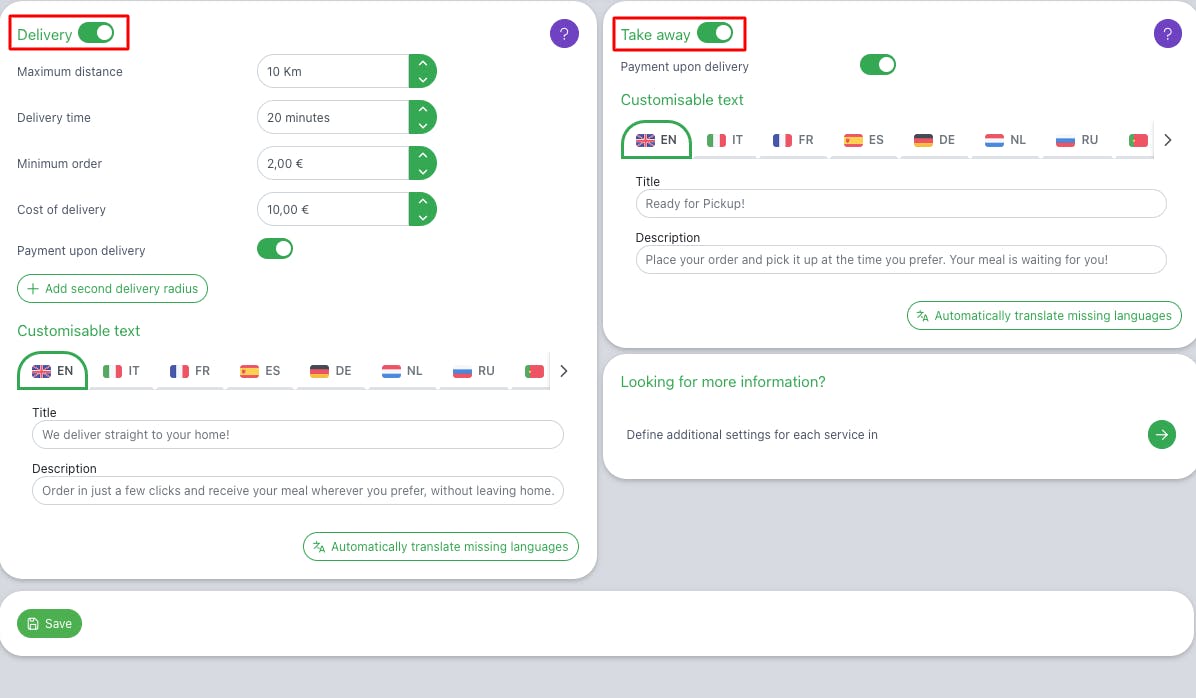
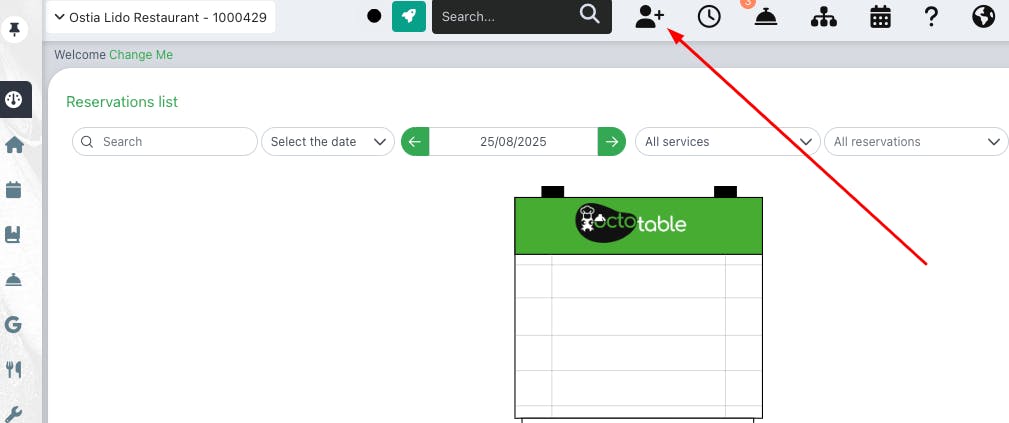
You can proceed with creating the manual order.
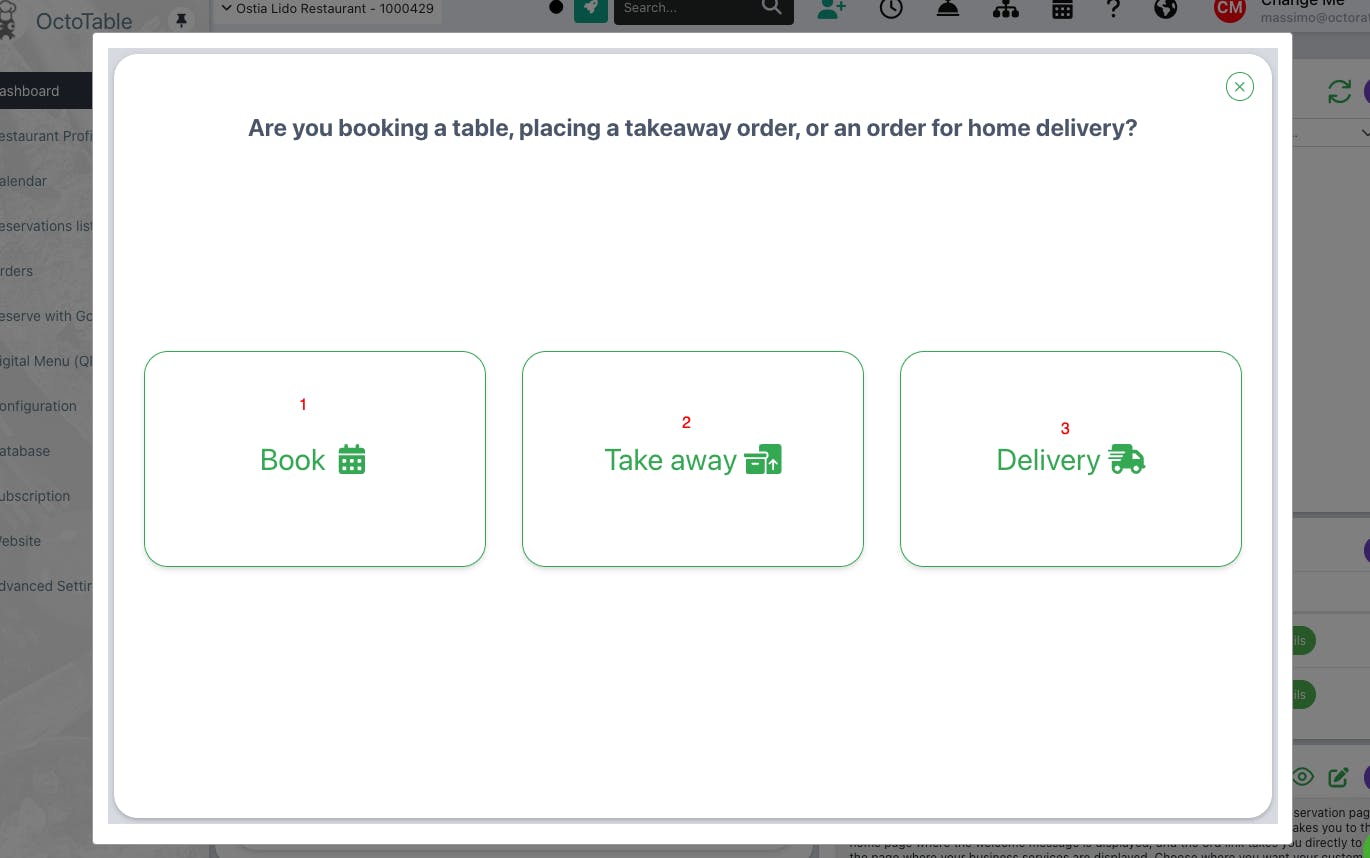
A window will open where you can choose to:
Create a walk-in booking
Create a Takeaway booking
Create a Delivery booking
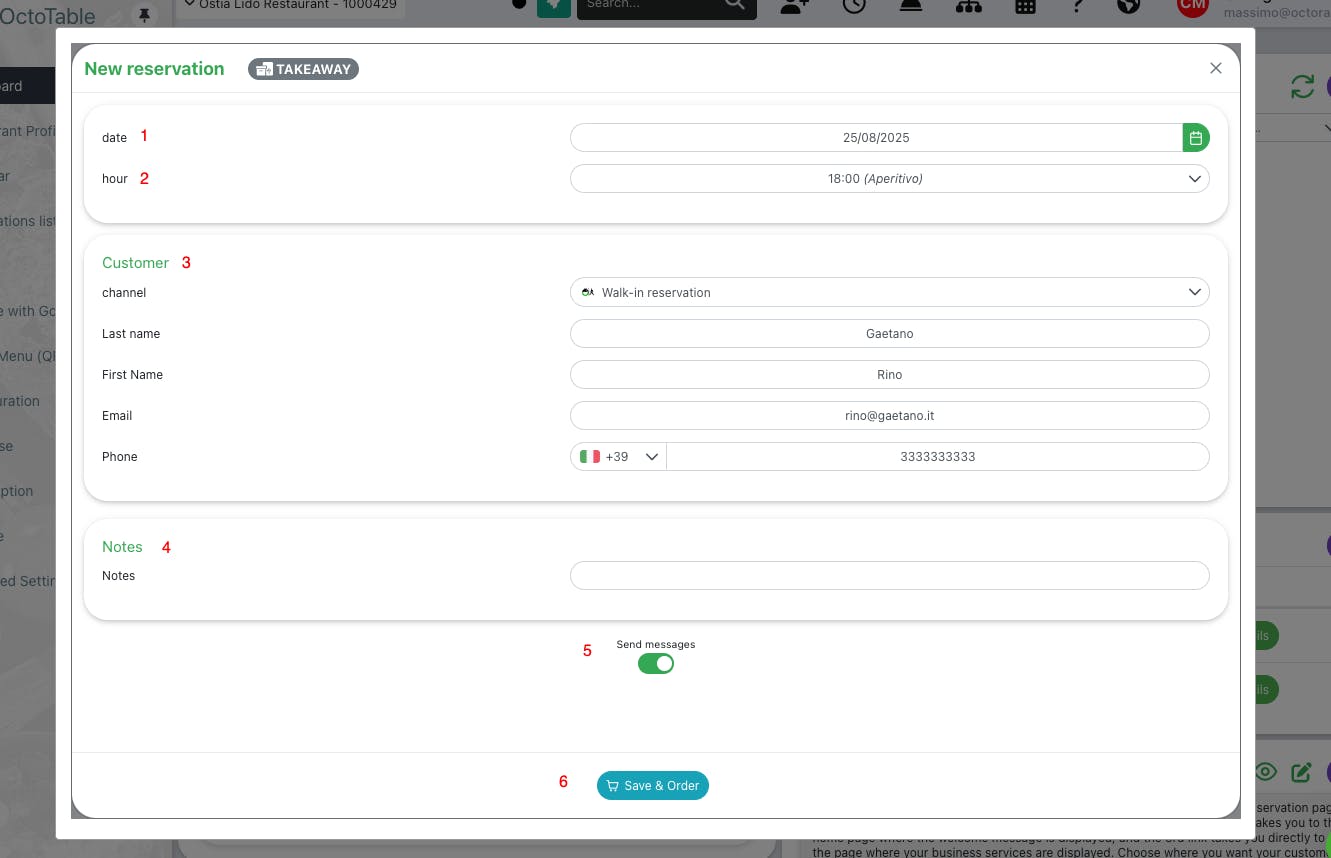
Once you have selected Takeaway as the booking method, you can:
Select the date for which the customer requested the takeaway
Choose the service and the desired time slot
Enter the customer’s details
Add any notes
Decide whether to send a notification via e-mail/SMS to the customer
Click Save and order
Once you click Save & Order, you will be redirected to the menu page associated with the selected service, where you can enter the customer’s order:
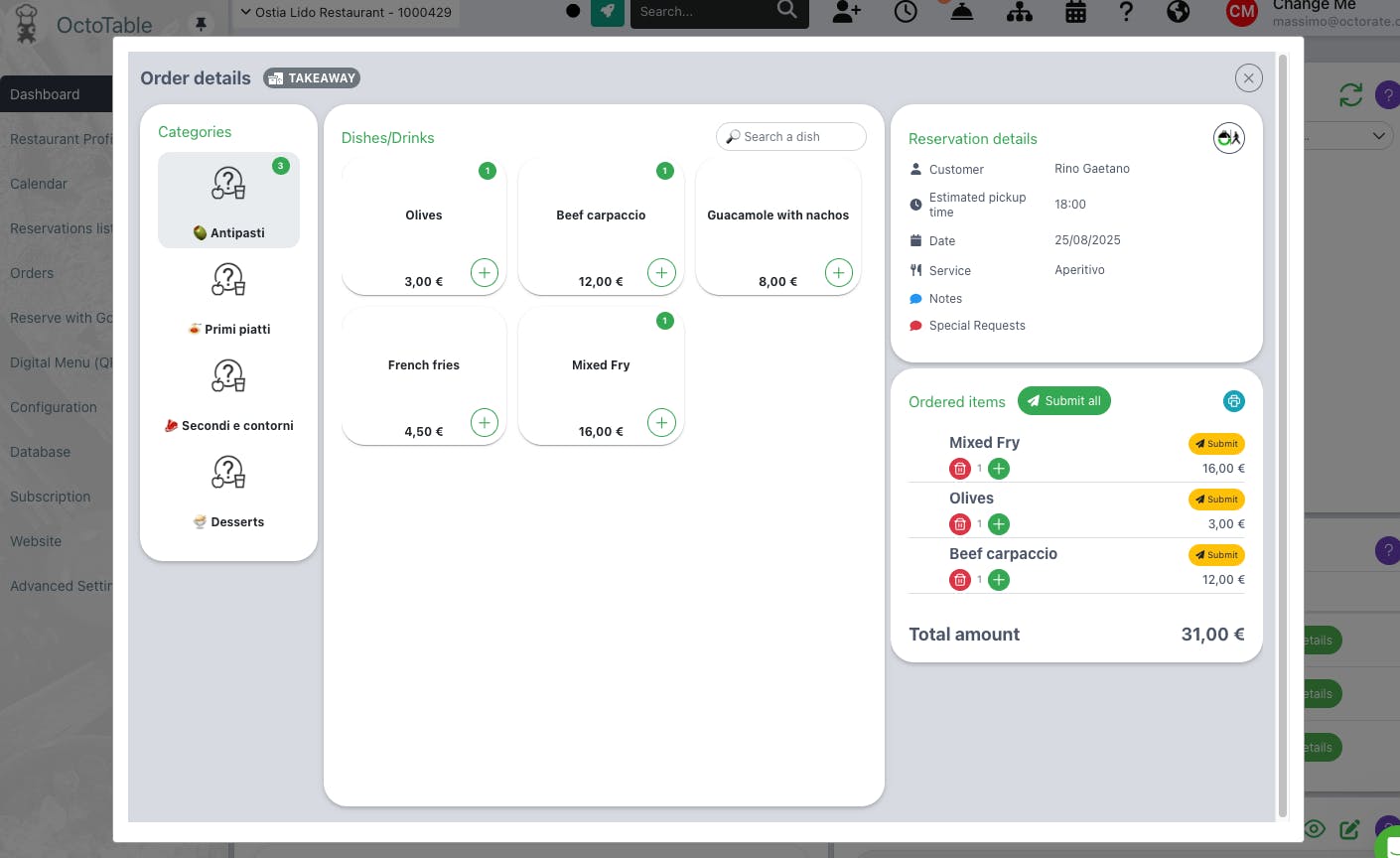
If you don’t know how to add an order for a booking on OctoTable, click here!
Once you have selected Delivery as the booking method, you can:
Select the date for which the customer requested the delivery
Choose the service and the desired time slot
Enter the customer’s details
Provide the delivery address
Add any notes
Decide whether to send a notification via e-mail/SMS to the customer
Click Save and order
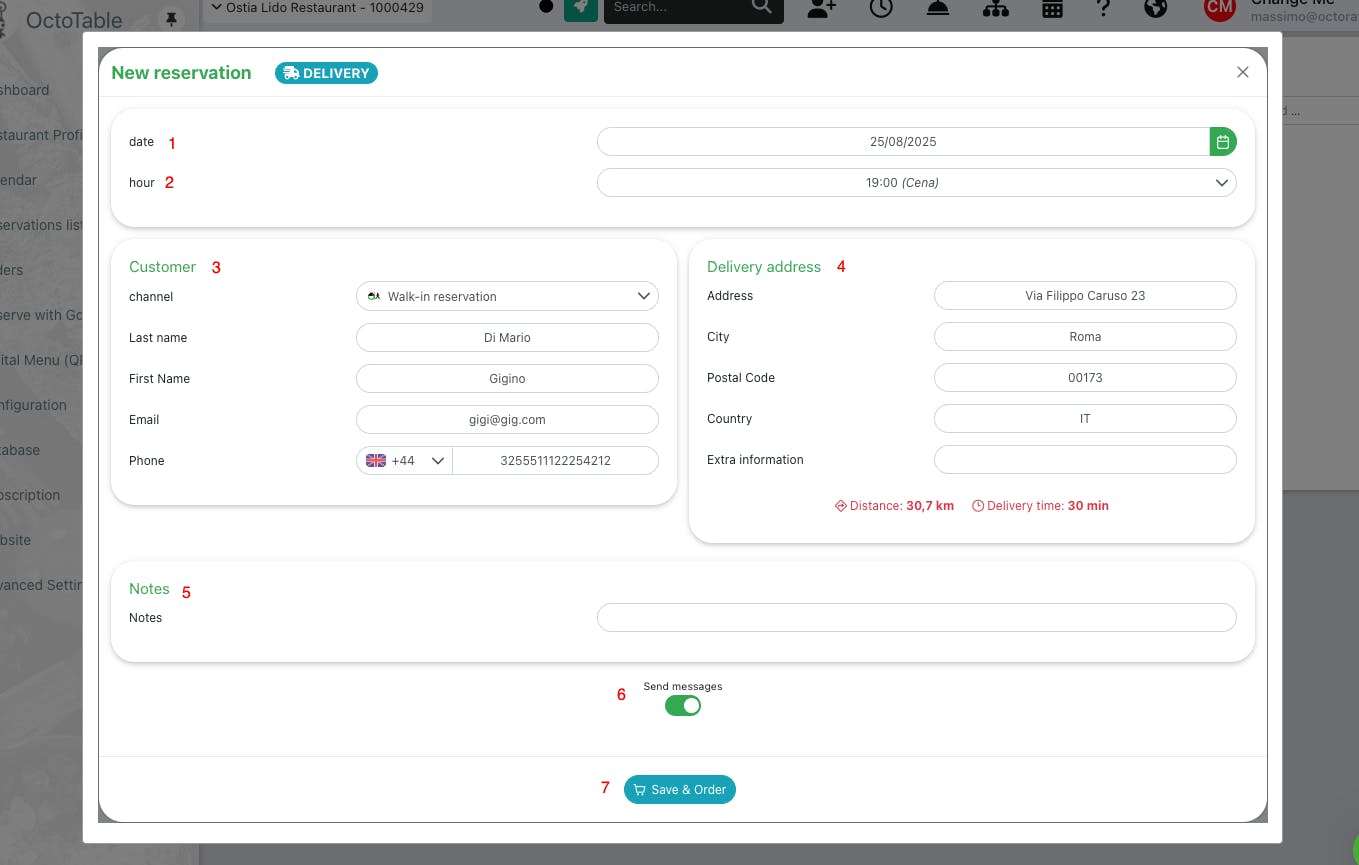
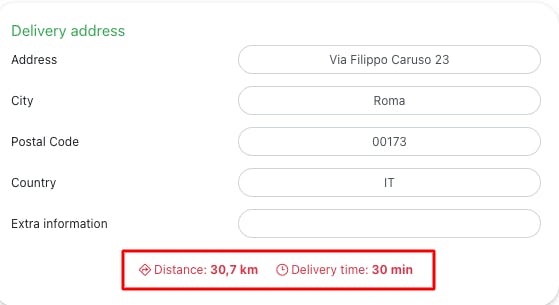
Once you have entered the delivery address, the system will suggest a result. After selecting it, the missing fields will be filled in automatically, and you will be shown the approximate distance and delivery time.
📌 Please note:
If the distance and travel time exceed the maximum values set in the delivery configuration page (Configuration > Take-away/Delivery):
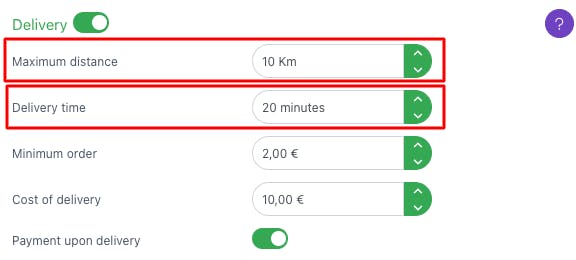
These two fields will be highlighted in red:
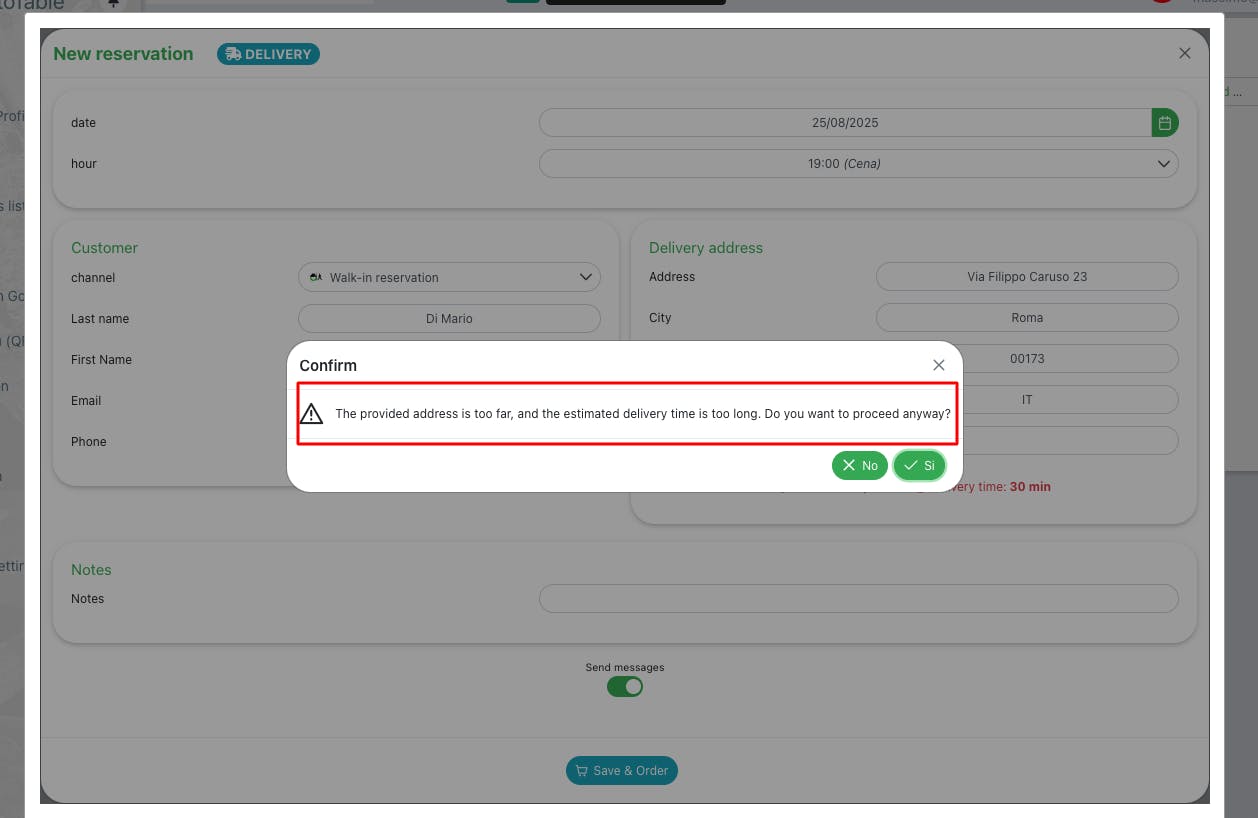
And if you proceed with saving anyway, a confirmation alert will be generated before creating the booking and registering the order.
The order entry will follow the same principle as for Takeaway and Dine-in.
📌 Please note:
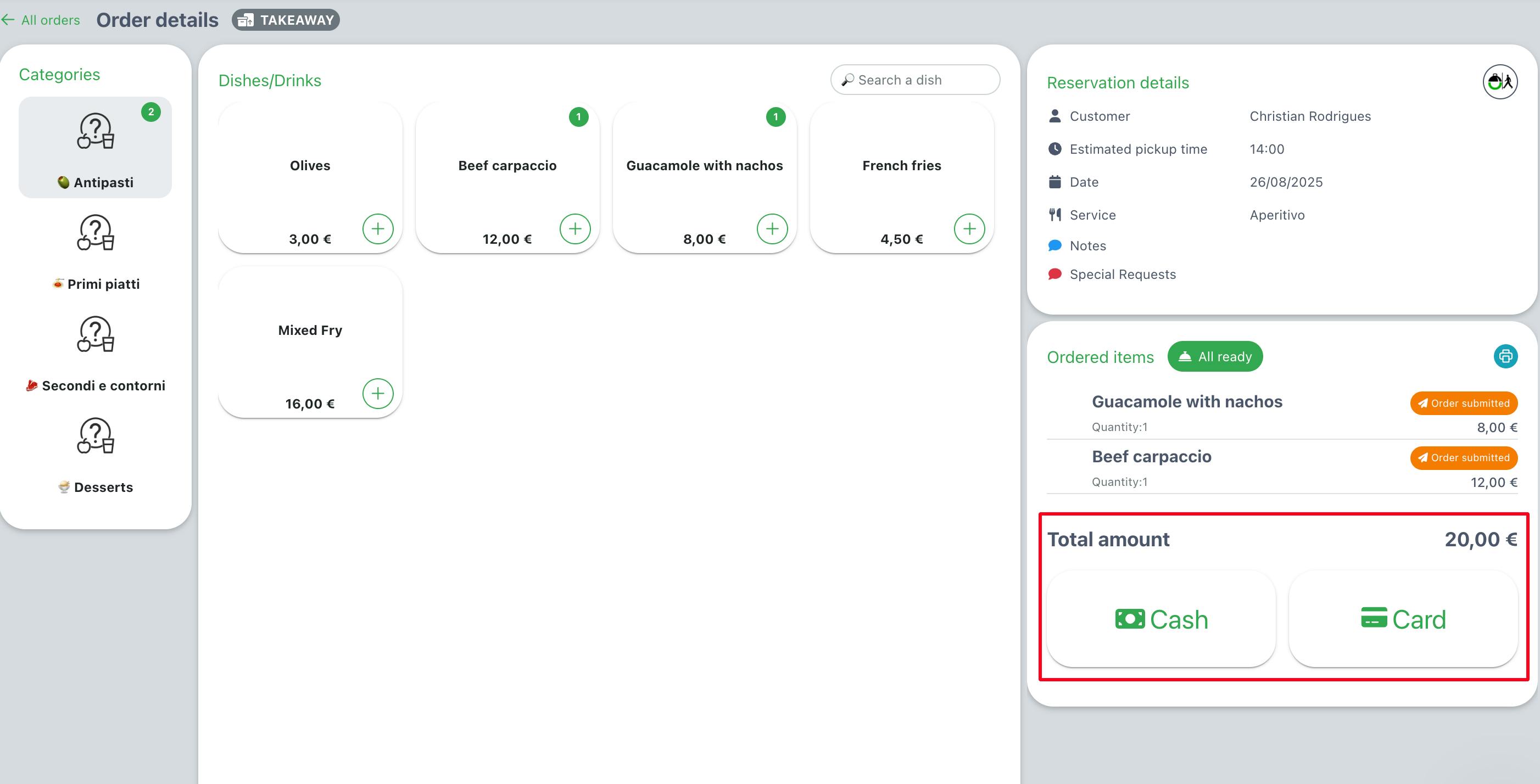
To be able to see the booking on the booking list, you need to check the option "Awaiting payment", since the booking has not yet been paid for.
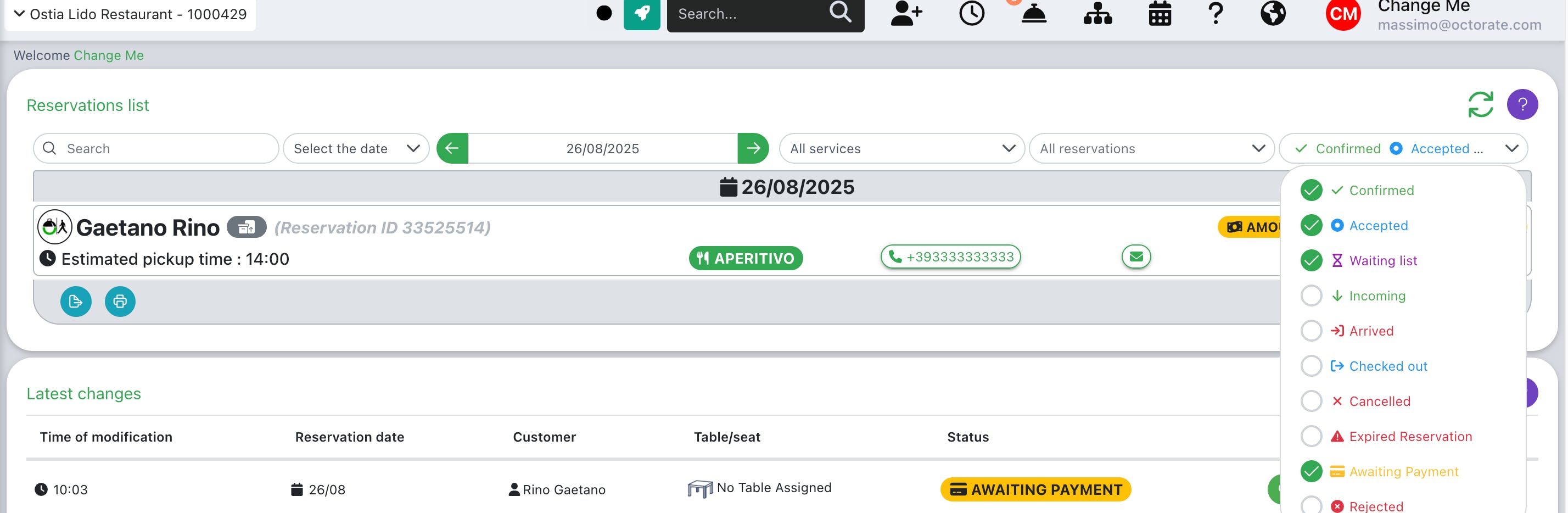
To indicate that the amount has been paid, simply go to the order details and select whether the payment was made by credit card or cash.