

Welcome to OctoTable
Connect, share, and engage with community and build relationships.
Please log in if you are already a member or sign up for an account.
In this article, you will discover how to add your credit cards, set up billing information, and manage upgrades and downgrades of your subscription in a direct and transparent way. The new system eliminates manual credit top-ups and makes charges completely automatic when your subscription expires.
You will no longer need to worry about manually topping up credit: once you have added your credit cards, all payments will happen automatically. This allows you to focus on managing your restaurant without service interruptions and with complete transparency on costs and deadlines.
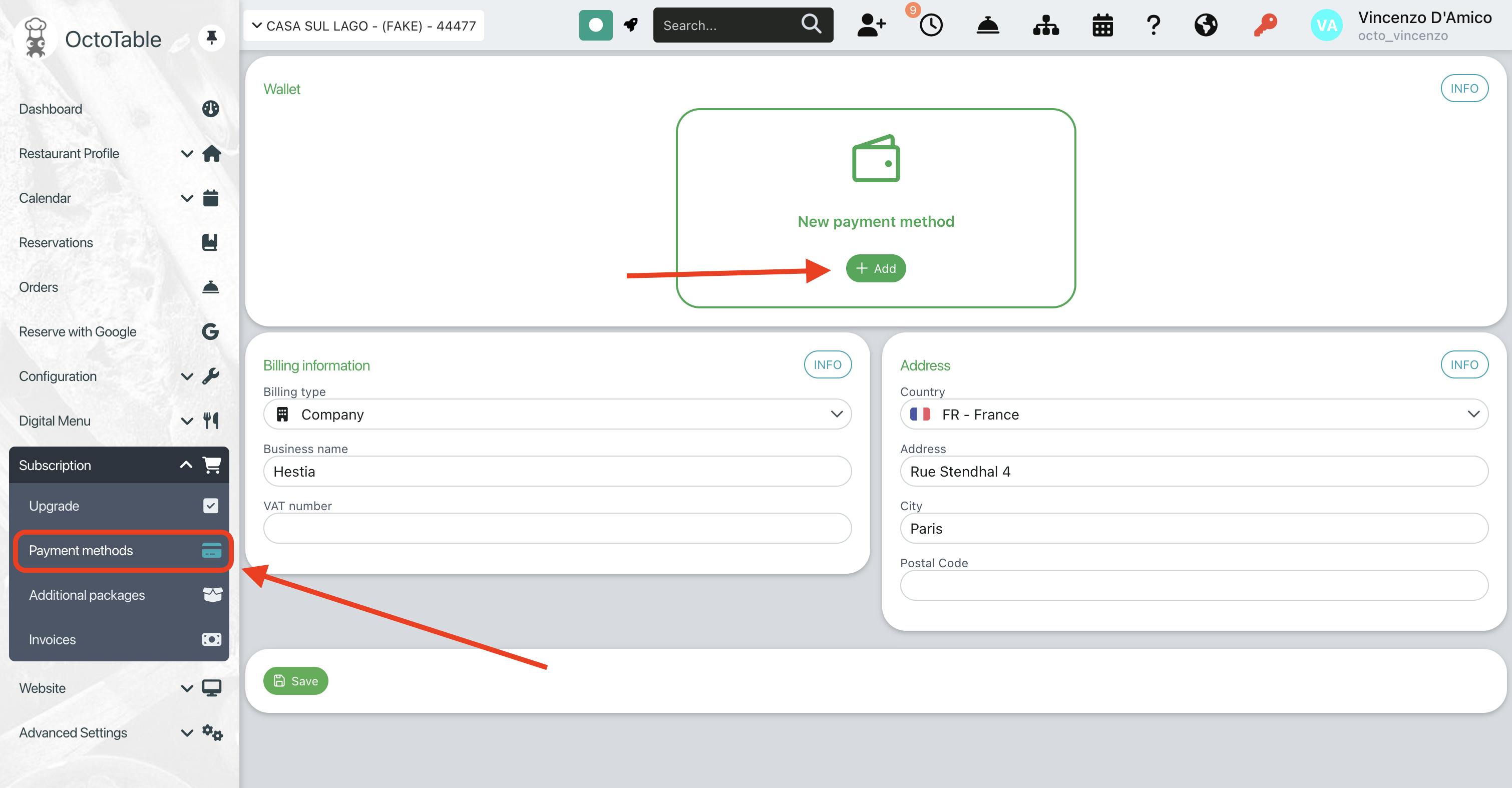
Access the Payment Methods section from Subscription > Payment Methods in the left menu.
Click the +Add button to insert a new card into your payment wallet.
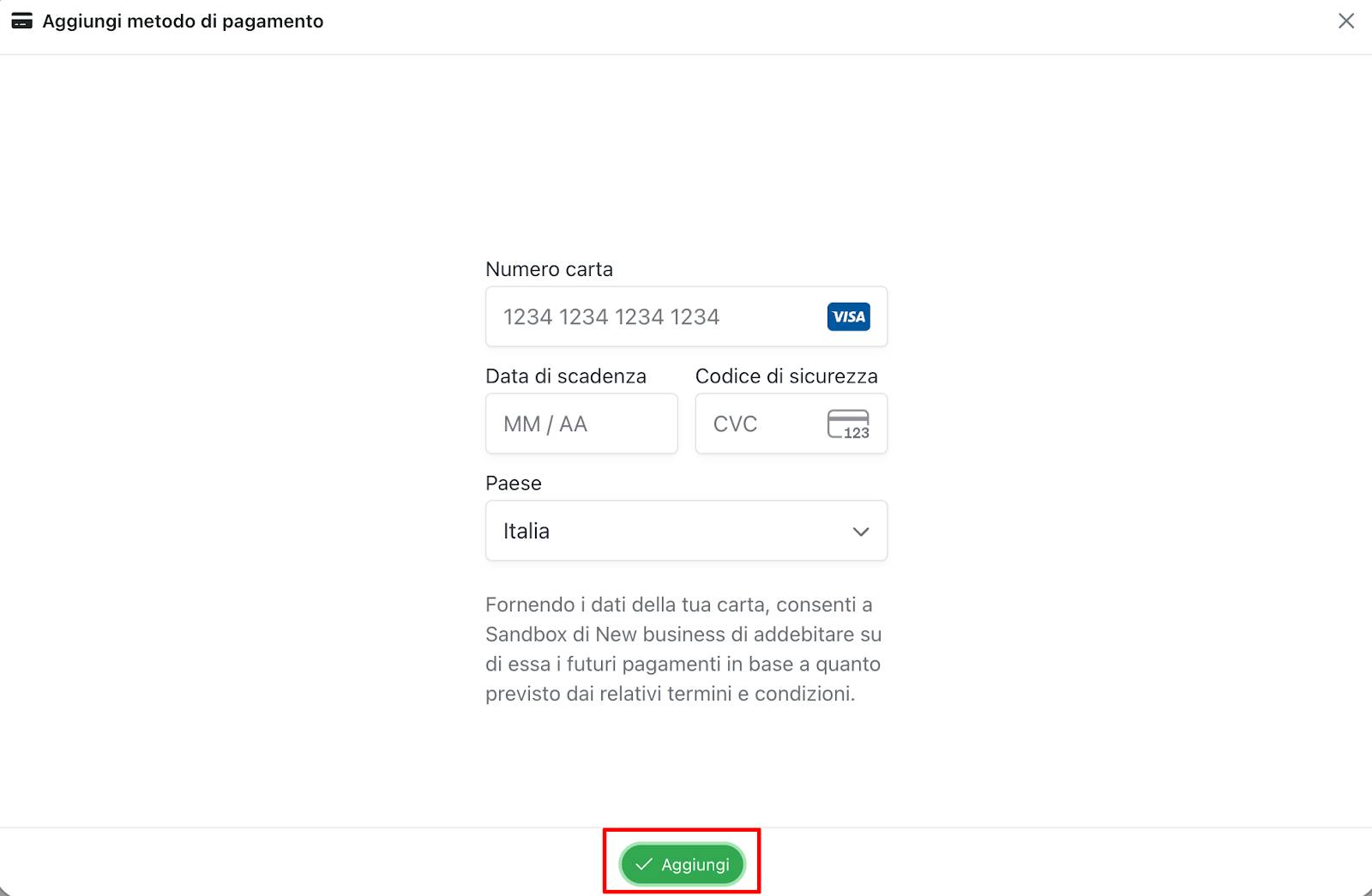
Enter your card details:
Card number
Expiry date
CVV code
Cardholder name
In the Payment Methods section you can:
View all saved cards with the last 4 digits to easily identify them
Set a card as default by clicking the star icon ⭐ next to the desired card
Delete cards that are no longer needed by clicking the trash icon 🗑️
Add new cards at any time without number limits
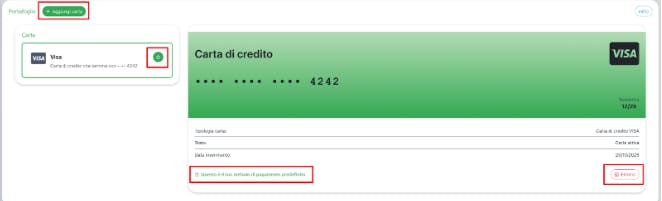
📌 Please note: The card set as default will be the one automatically used for subscription renewal and for purchasing any additional packages. You can change it at any time by setting another one as default in the Payment Methods page, or by selecting Change card at the time of purchase. If your default card has expired, we will use the next one as default.
Check your card expiry dates
Periodically check that saved cards have not expired and update them in time. We will always notify you when a card is expiring or has expired, so you can provide a new payment method if necessary.
📌 Please note: in case of failed payment, we will send you emails asking you to add a new payment method. Please note, after 3 days your subscription will be deactivated.
On the same page, scroll down to the Billing Information section to enter all the information necessary for your invoices:
Restaurant business name
VAT number or Tax Code
Complete address
ZIP code, City and Province
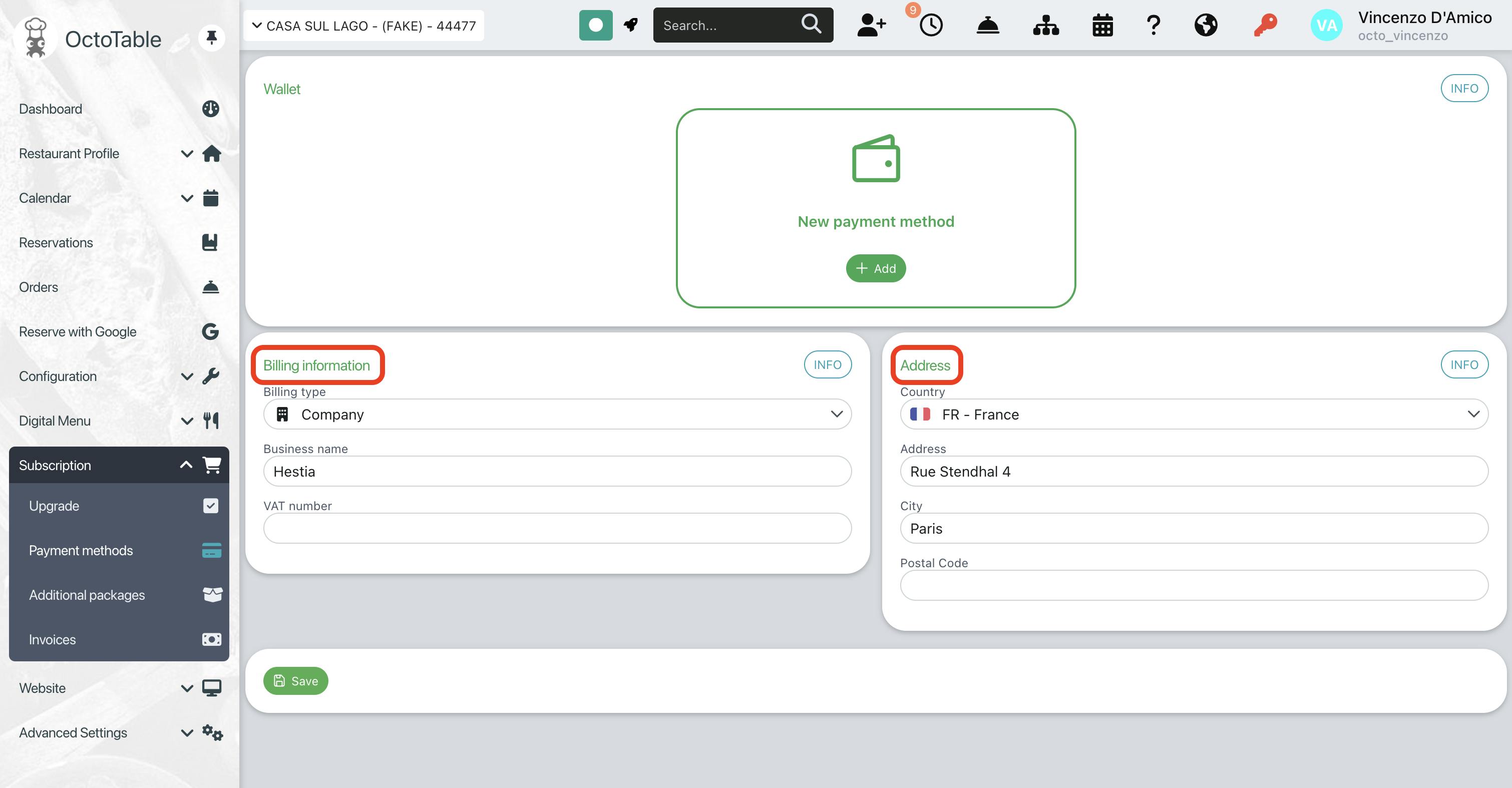
📌 Please note: Billing information will be used for all invoices generated by the system, including subscriptions and additional packages. You will find invoices in the Subscription > Invoices page.
Once you have configured your default card, the system will automatically charge:
On your subscription expiry date for automatic renewal
When purchasing additional packages such as SMS or images
Immediately after confirmation in case of plan upgrade
You will no longer need to worry about topping up credit and payment will occur transparently.
How to upgrade
You can switch to a higher plan at any time during your subscription:
Go to Subscription > Version
Select the desired higher plan (e.g. from DigiMenu to Premium)
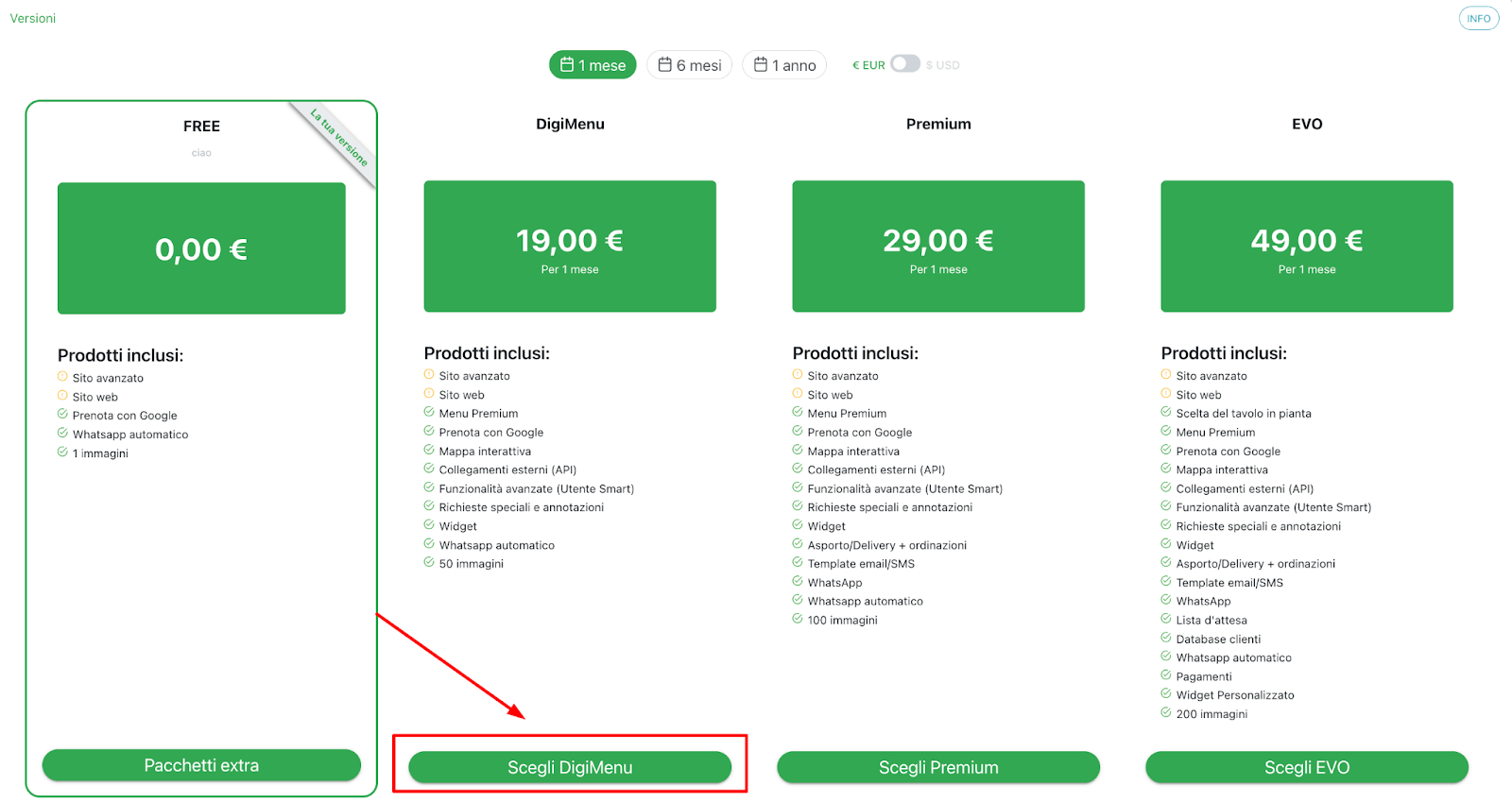
Confirm the upgrade
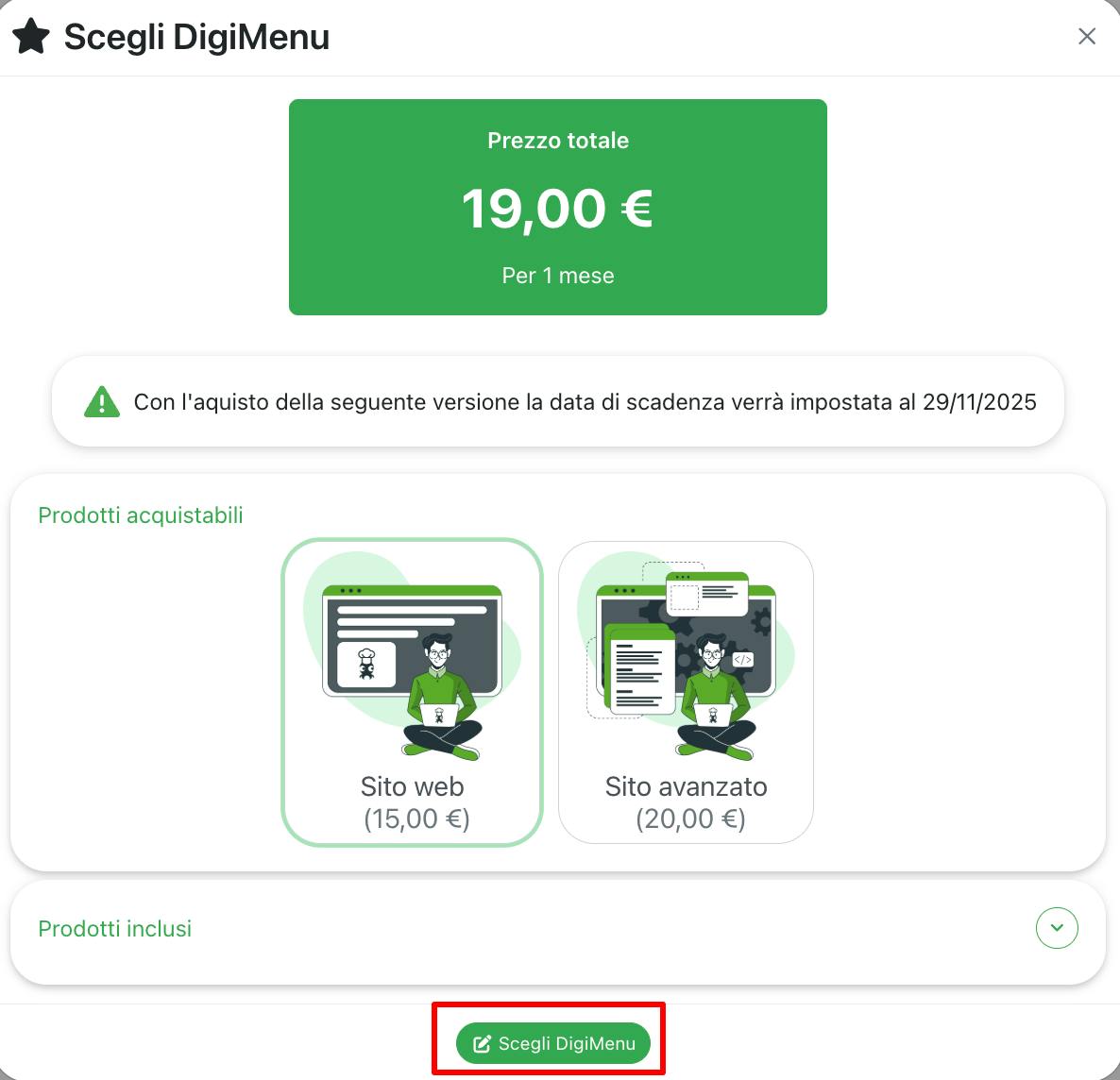
What happens when you upgrade:
The remainder of your current subscription will be deducted from the amount of the new plan
Your subscription period will restart from zero with the new expiry date
Your default card will be charged immediately for the difference
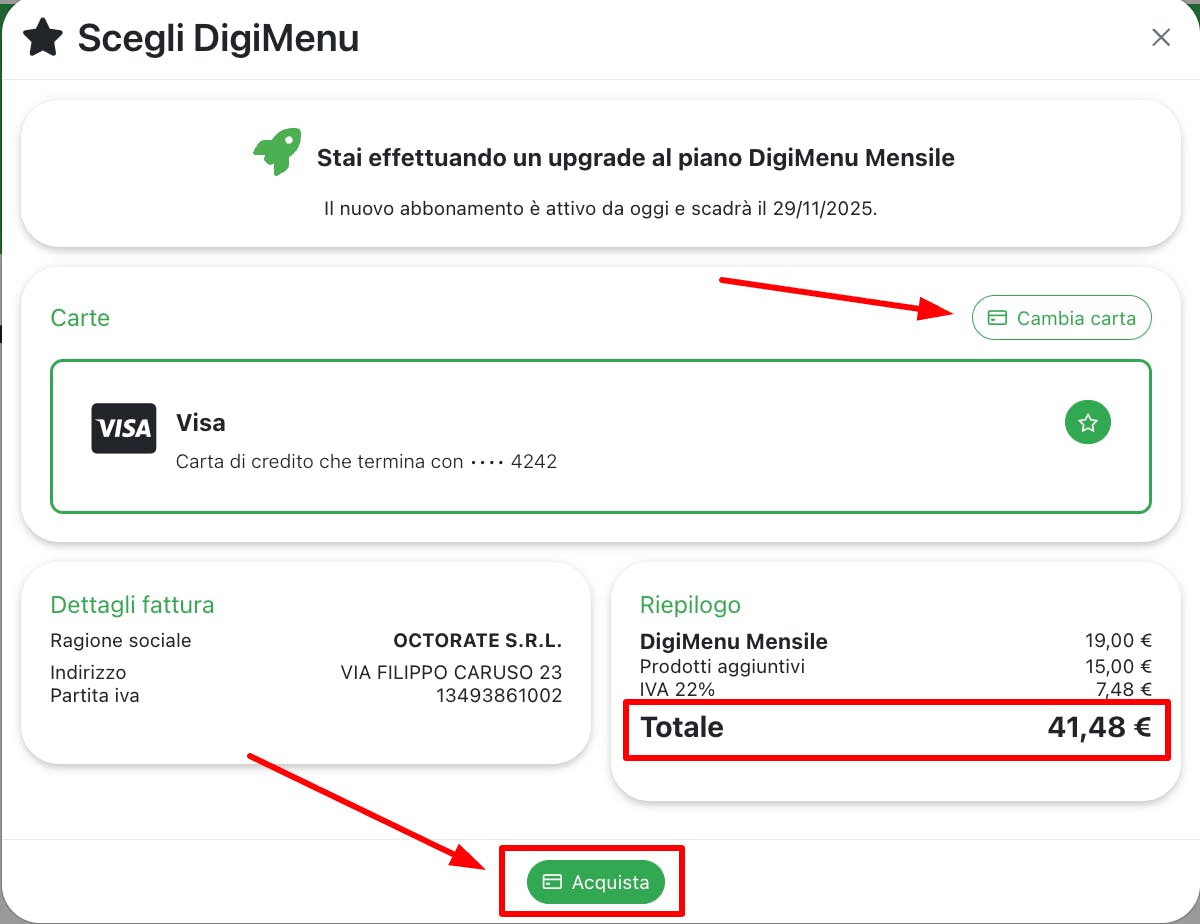
Practical upgrade example: If you have a DigiMenu subscription at €19/month and after 15 days you decide to upgrade to Premium at €29/month, you will pay €29 - €9.5 (remainder) = €19.5. Your Premium subscription will start immediately and will last 30 days from the upgrade date.
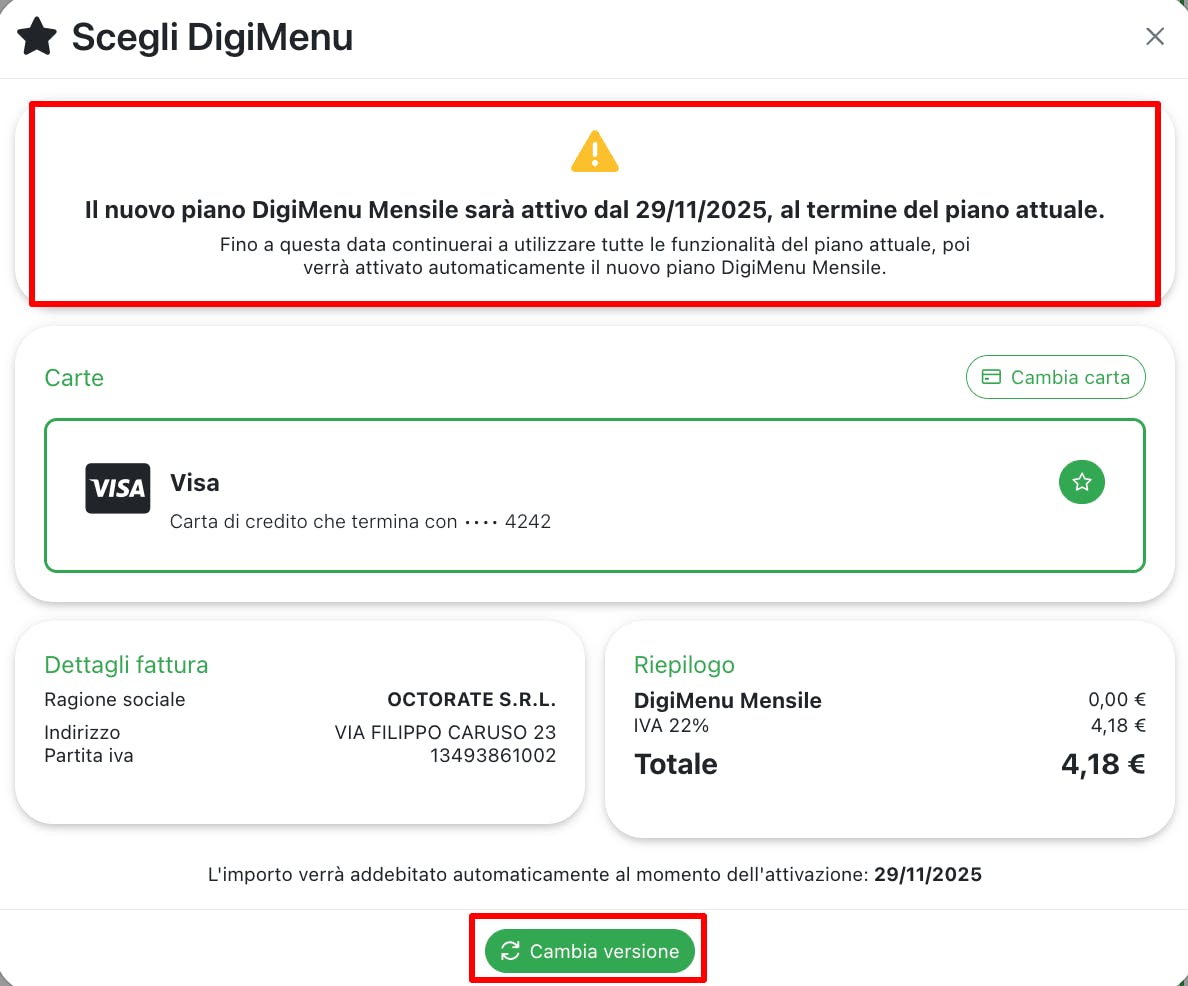
If you want to switch to a lower plan, the change will be effective from the expiry date of your current subscription:
Go to Subscription > Version
Select the desired lower plan
Confirm the plan change
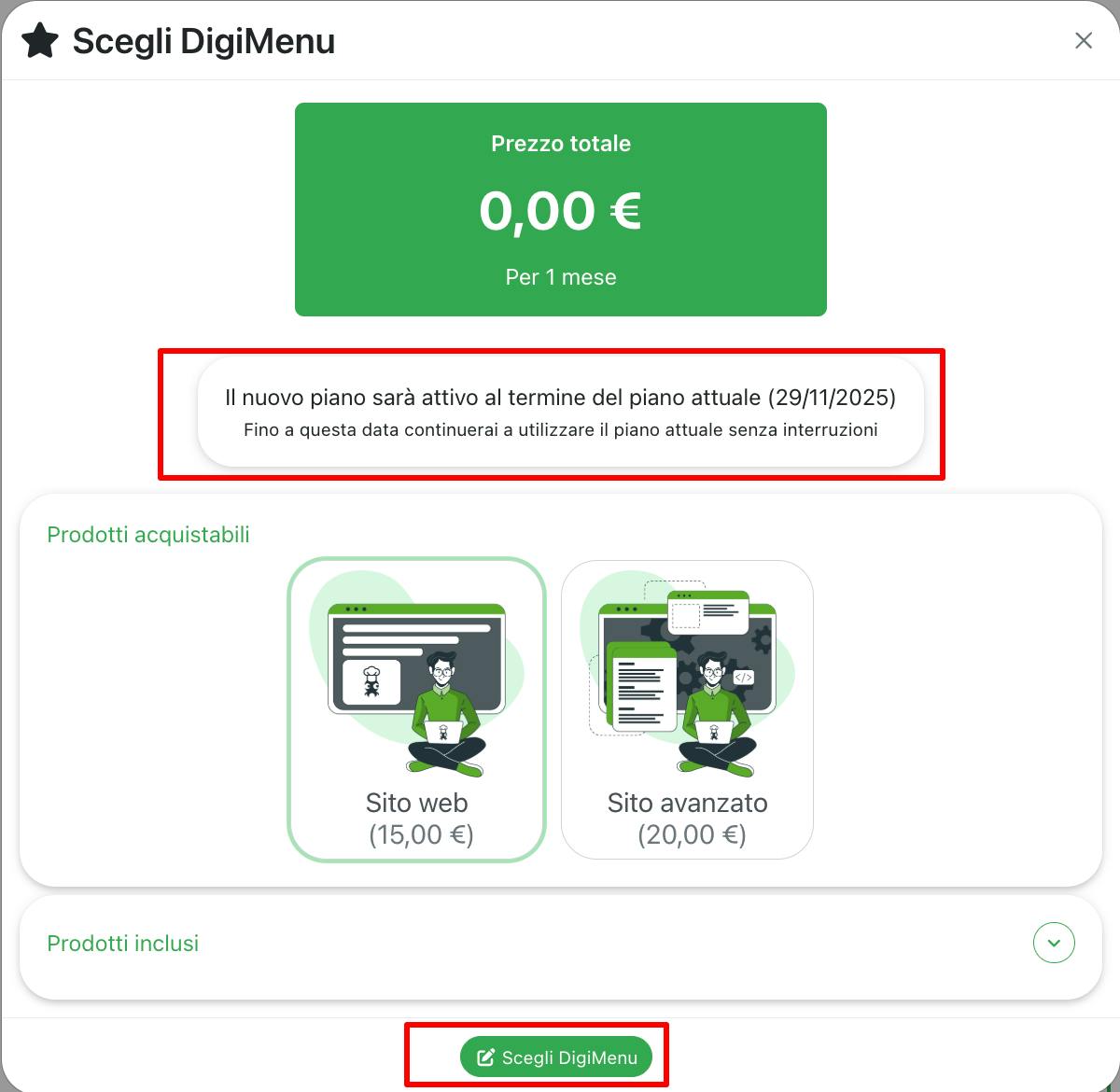
The system will confirm that the version change will become effective upon expiry of the current subscription. In the meantime, you will continue to enjoy all the features of the current plan.
If you want to add additional SMS or image packages to your plan, you can do so in the Subscription > Additional Packages section.
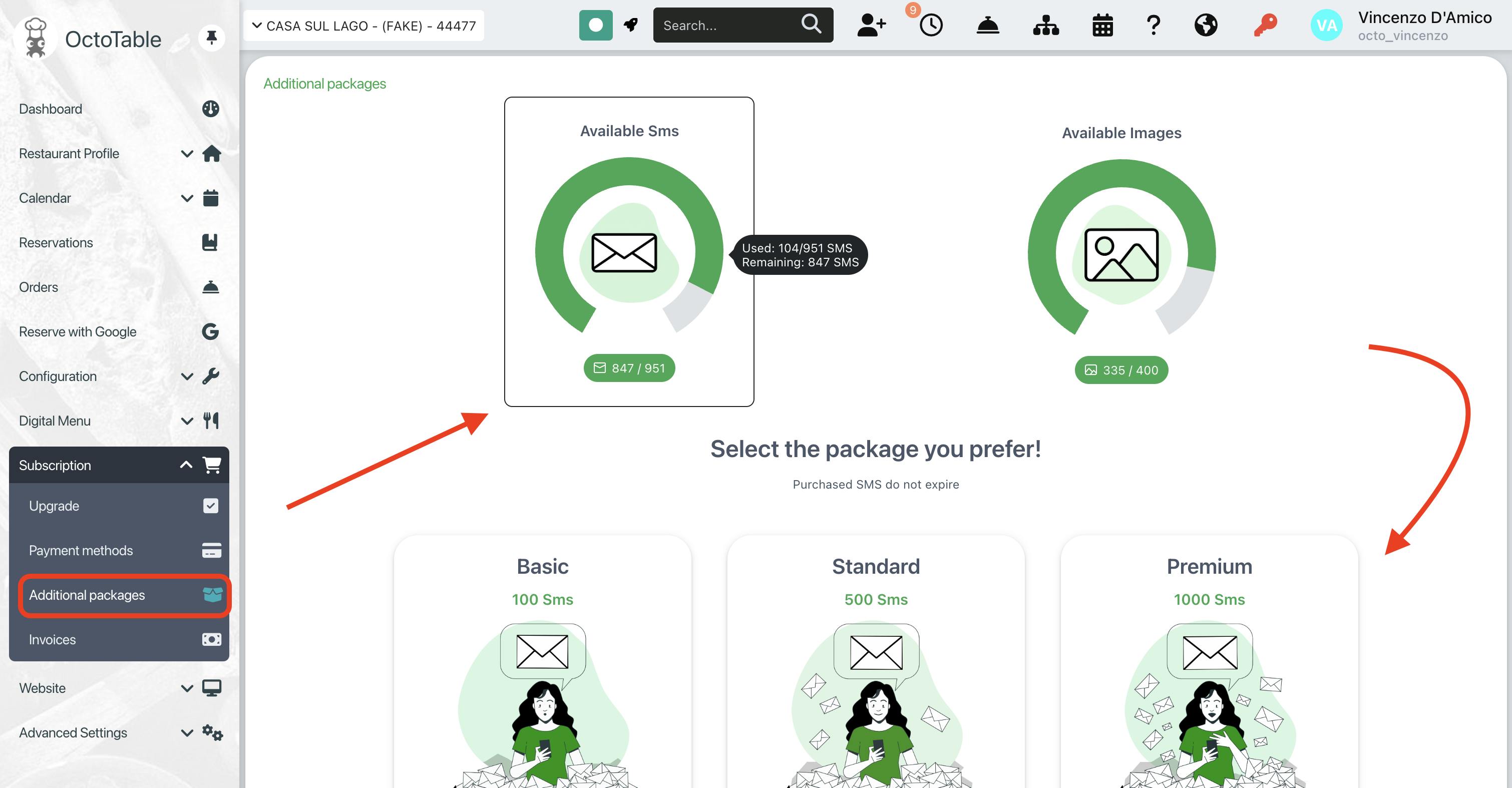
Here you can view:
SMS and images still available
Purchasable packages
💳 Do you still have remaining credit on your account? Find out how it will be converted with the new payment system: read the full article 👇